Last Updated: 2026-05-20
Your own AI resume reviewer
Using Google AI Studio's build feature, you can create any frontend application in React.js with a prompt. The Build feature in AI Studio generates applications that use the Gemini SDK and have no server-side components. The apps run in a sandboxed frame. For this workshop, you will create a tech resume reviewer that will score your resume out of 100 against a given job description. Let's get started!
What you'll build
In this codelab, you'll build a resume reviewer that will score your resume against a job description:
- Your resume will be uploaded as text (not a file)
- The job description will also be uploaded as text
- The resume reviewer will give you a score (out of 100)
- It will also give you some actionable feedback in relevant sections and suggestions to change sentences.

What you'll learn
- How to use Google AI Studio to build a "demo" app, with newly added features
- How to deploy the app to Google Cloud Run
- How to write an effective prompt on Google AI Studio (using Gemini) to create an app
This codelab is focused on Google AI Studio and a bit on Google Cloud Run.
To begin, you will need to have the following pre-requisites sorted:
- A Google account
- A web browser (like Chrome) to run Google AI Studio
- A Google Cloud Platform project with some credit (GCP credits are provided; make sure you have applied the given credit, which is usually $5)
Go to Google AI Studio
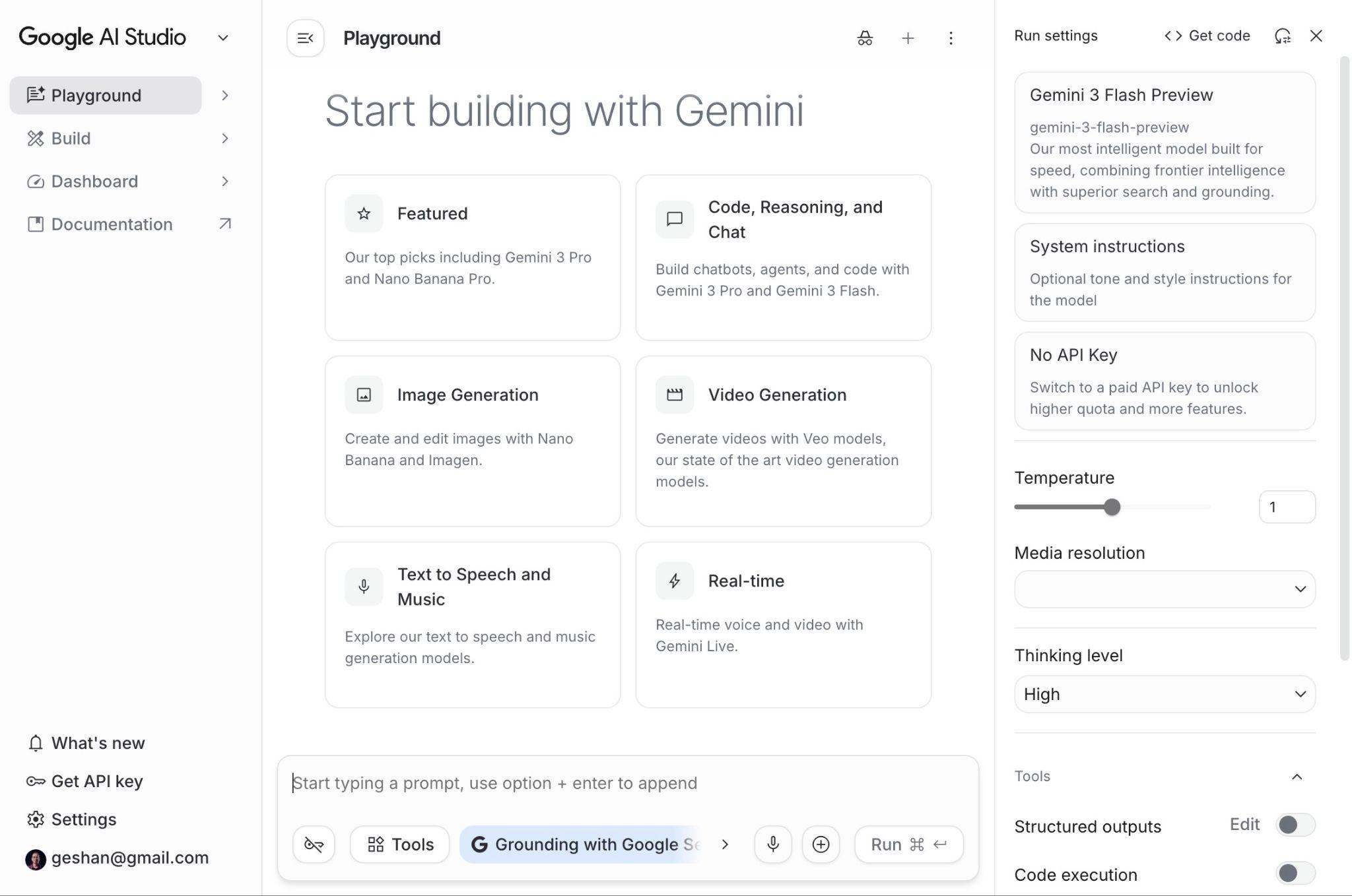
To build a tech resume reviewer using Google AI Studio's Build feature. You will first need to go to the Google AI Studio app. You can open the Google AI Studio app by visiting https://aistudio.google.com in your favourite browser, or by visiting ai.dev.
Navigate to Build
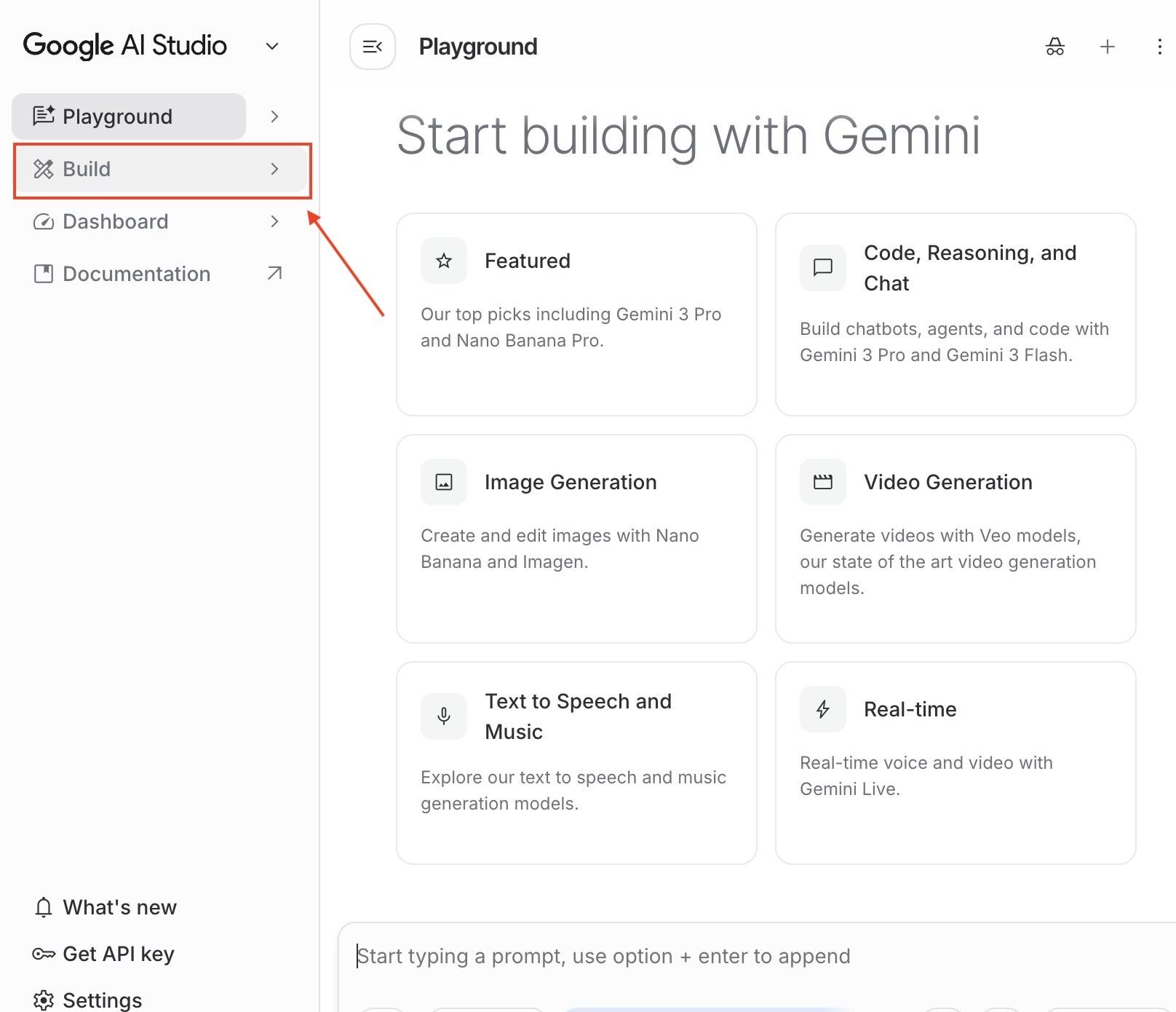
To go to the Build feature of Google AI Studio, you can click the Build menu item on the left navigation, as seen below:
In the next part, you will start writing your prompt.
Use the correct model and framework
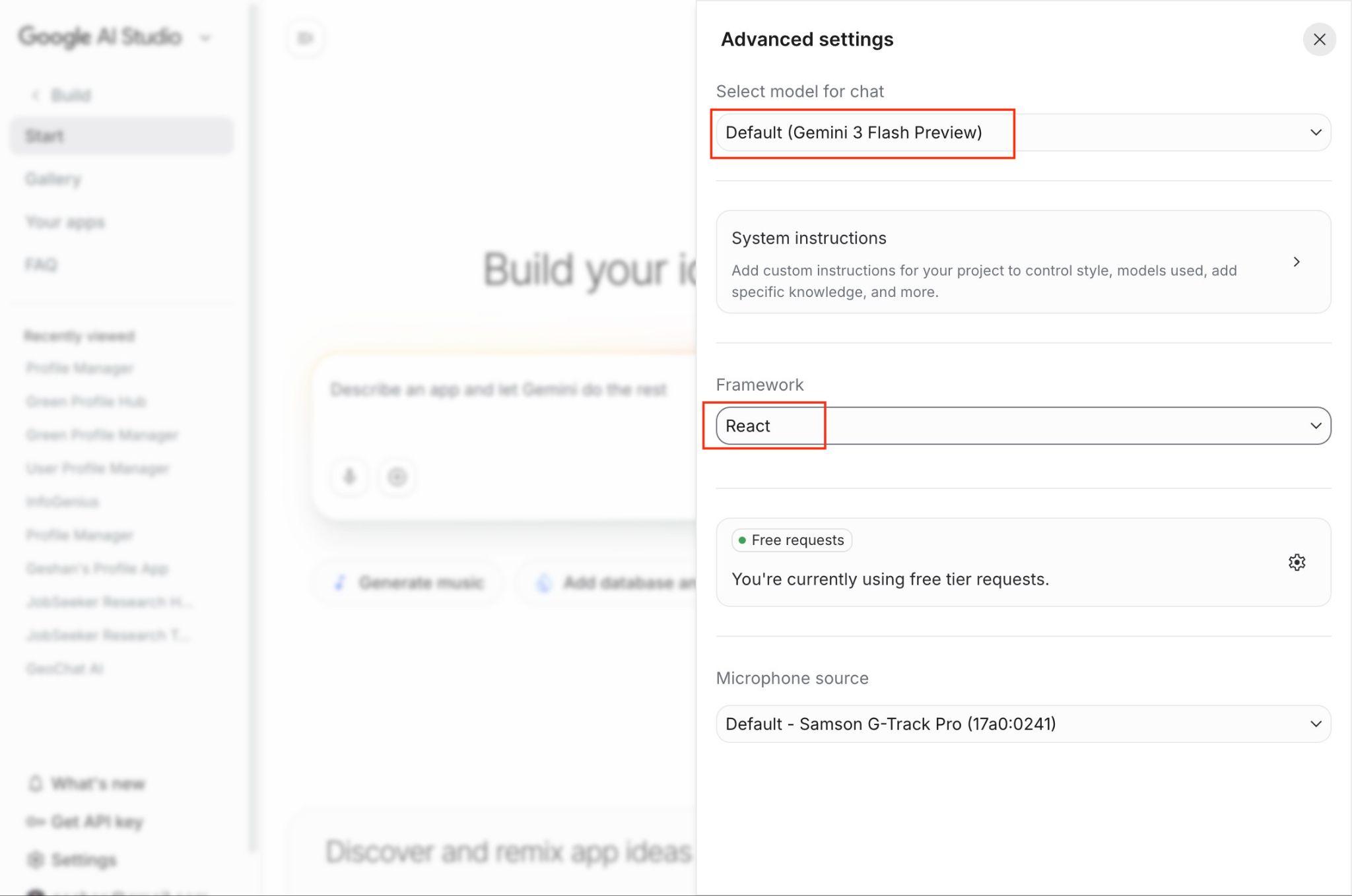
Before using the prompt to create the resume-reviewer app, you will choose the right model and application framework. To do this, you will click the gear ⚙️icon on the top right corner of the Google AI Studio build page:

After that, select the "Gemini 3 Flash Preview" in the model and React as the framework, as seen below:
After that, close the settings and go back to the form to put in the prompt.
Input the intelligent resume reviewer prompt
As you want to build an intelligent tech resume reviewer, you will use the prompt given below:
The prompt
Build an intelligent resume reviewer that analyses a resume against a job description, providing actionable feedback and suggestions based on the proven XYZ formula to help you stand out. Both the resume and the job description are also uploaded as text.

Please take note of the following things when reviewing the resume:
1. The primary purpose of the resume is to get the initial call or email from the tech recruiter, who is a non-technical person
2. Please make the resume appeal equally to the engineering manager and other technical leaders who will take the interviews in later rounds.
3. Keep yourself in the position of the resume receiver and frame the bullet points in a way to accentuate how the candidate can add value to the organisation


Technically, please do the following:
1. Please name the application "Resume Reviewer" and create it with an orange color theme.
2. While uploading, show messages like "Parsing objective",  "Analysing job descriptions", "Creating a personalised review",
and similar messages. Please show the same message exactly once
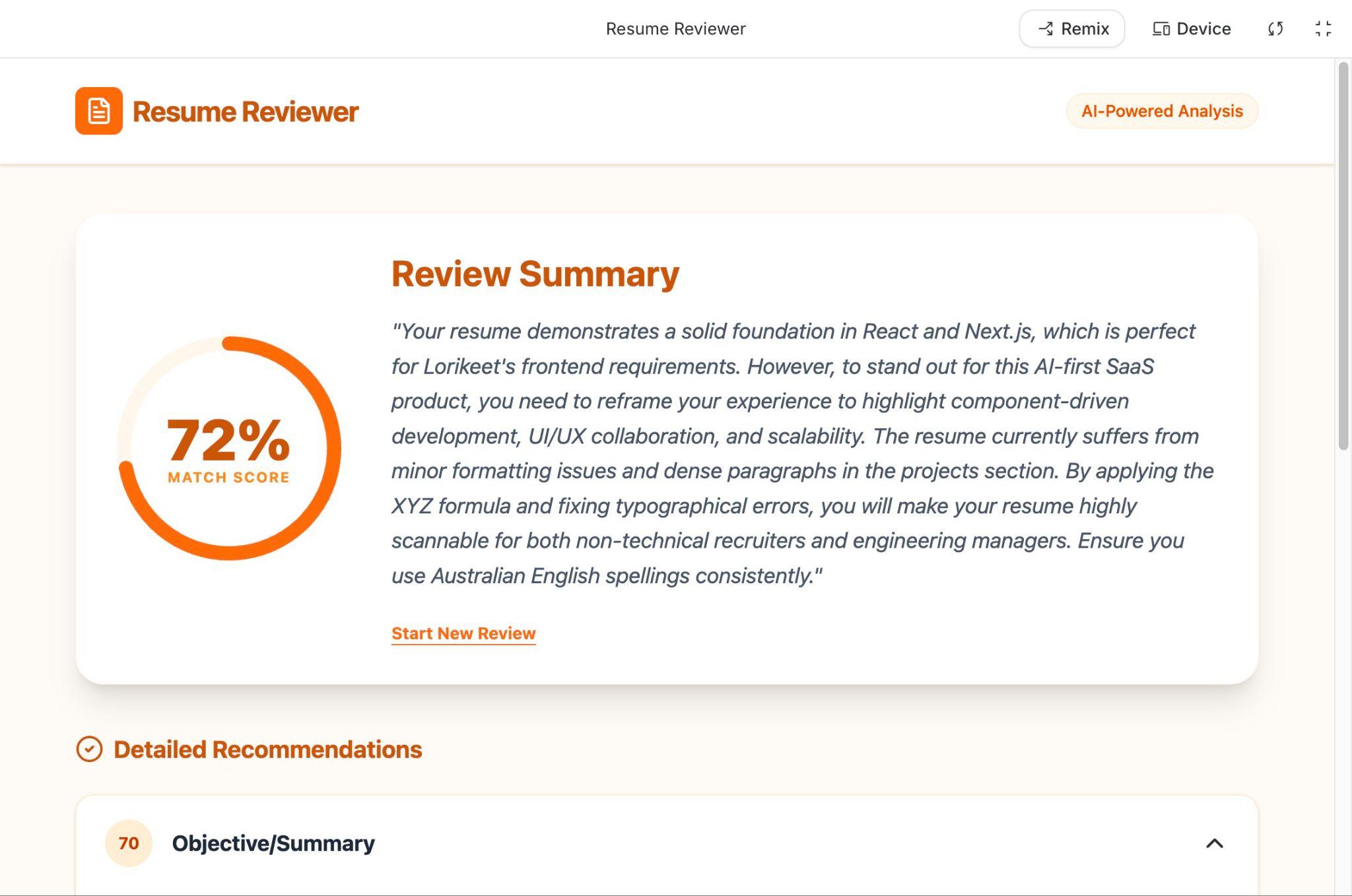
3. Show a percentage score of what the resume currently scores against 100, and things that can be improved in categories
like objective, job description, side projects, formatting, and use of language, etc
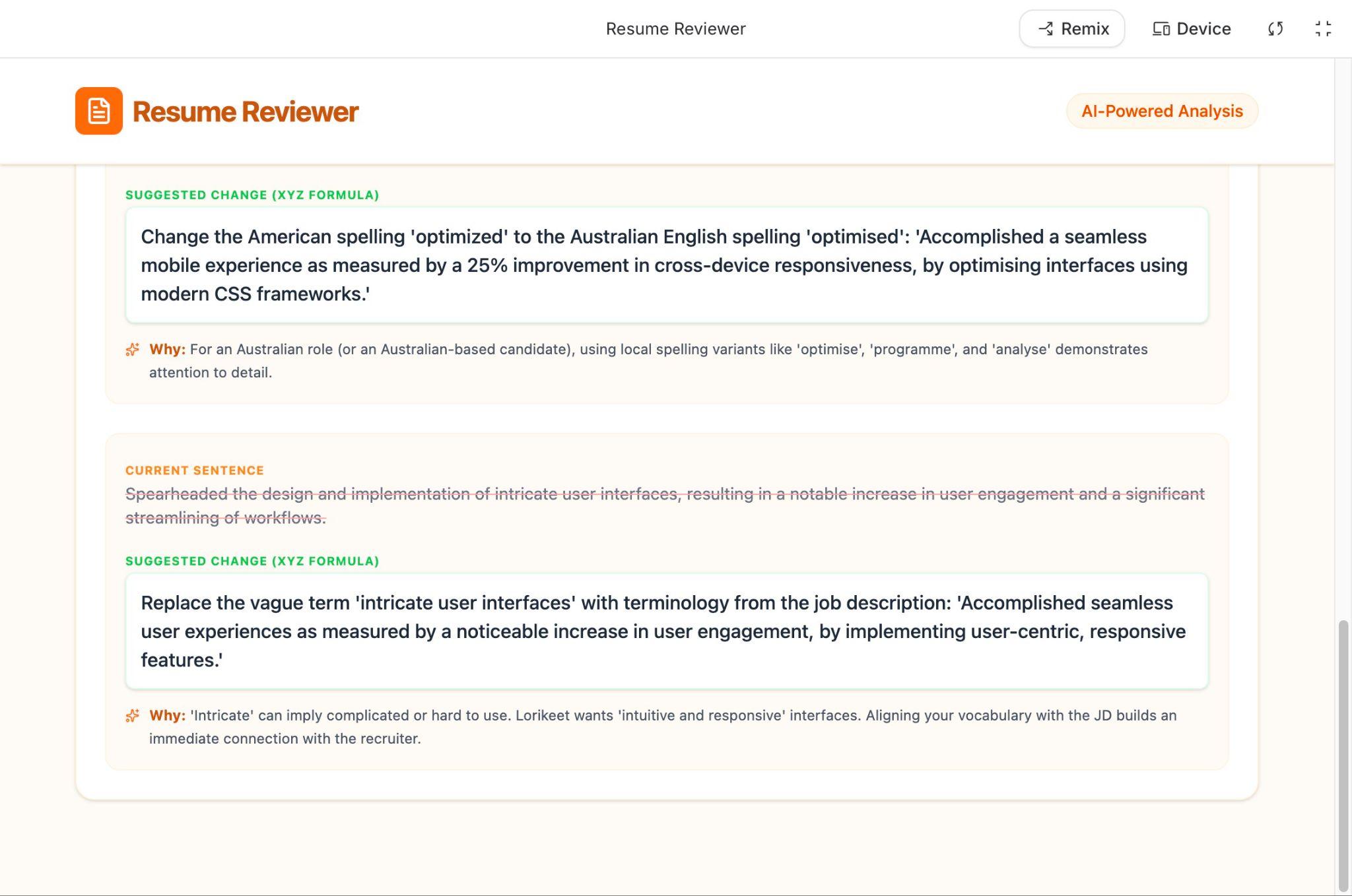
4. Show detailed suggestions for each category nicely presented in a foldable bullet point list per category, highlighting the things to change per sentence.

As a baseline, always use Australian English spellings for all the suggestions.
Prompt on Google AI Studio
You can edit the prompt if you like, or just paste the prompt on Google AI Studio Build feature, then also find and click the "Add Gemini intelligence" option under the form, as seen below:
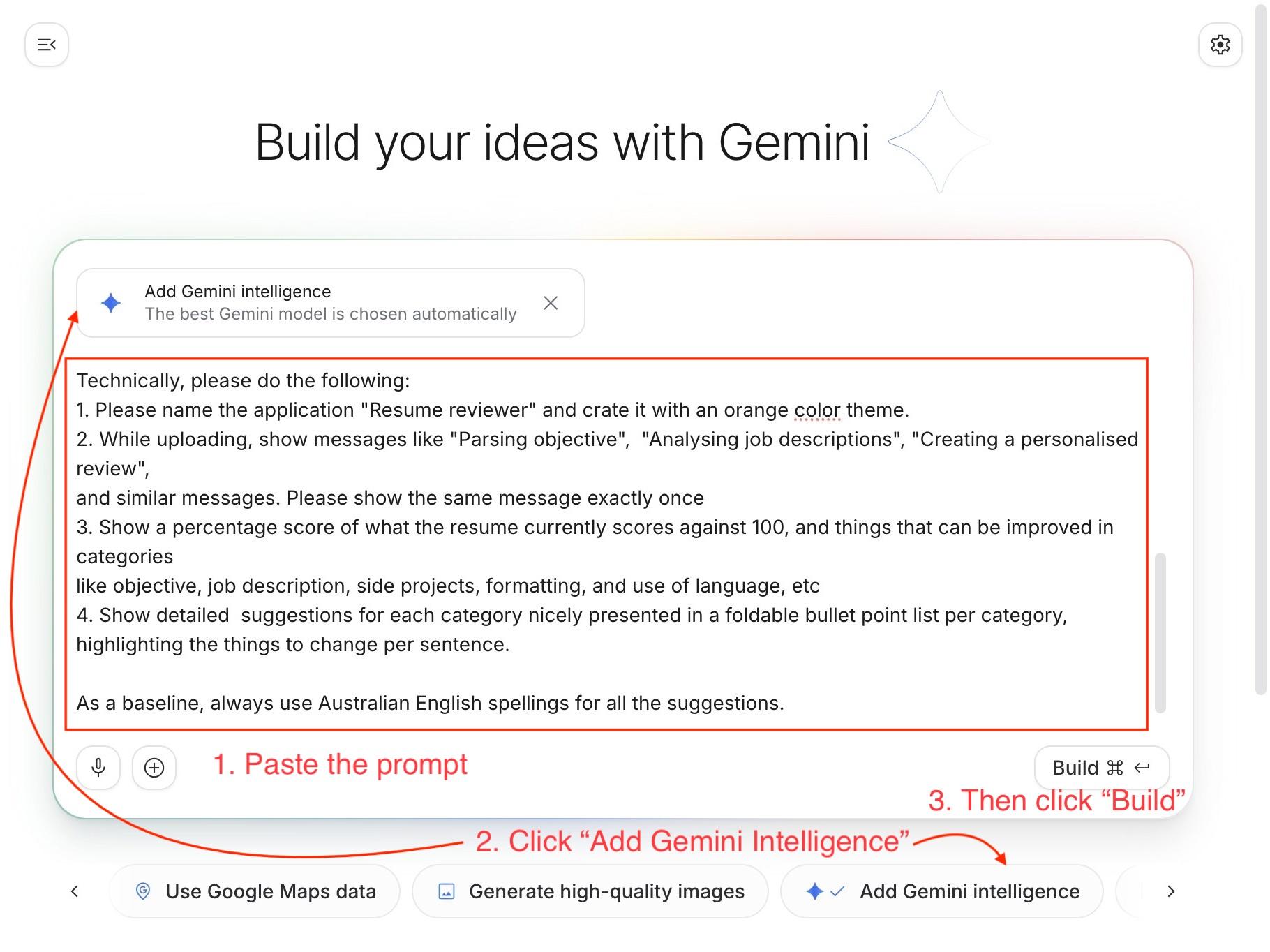
After that, click the Build button on the form. Then you will need to wait for the app to be built. It will take 2-3 minutes. The orange theme is mentioned in the prompt so that most of the generated apps look similar.
It will show something as follows when it is creating the app:
Resume reviewer app is generated
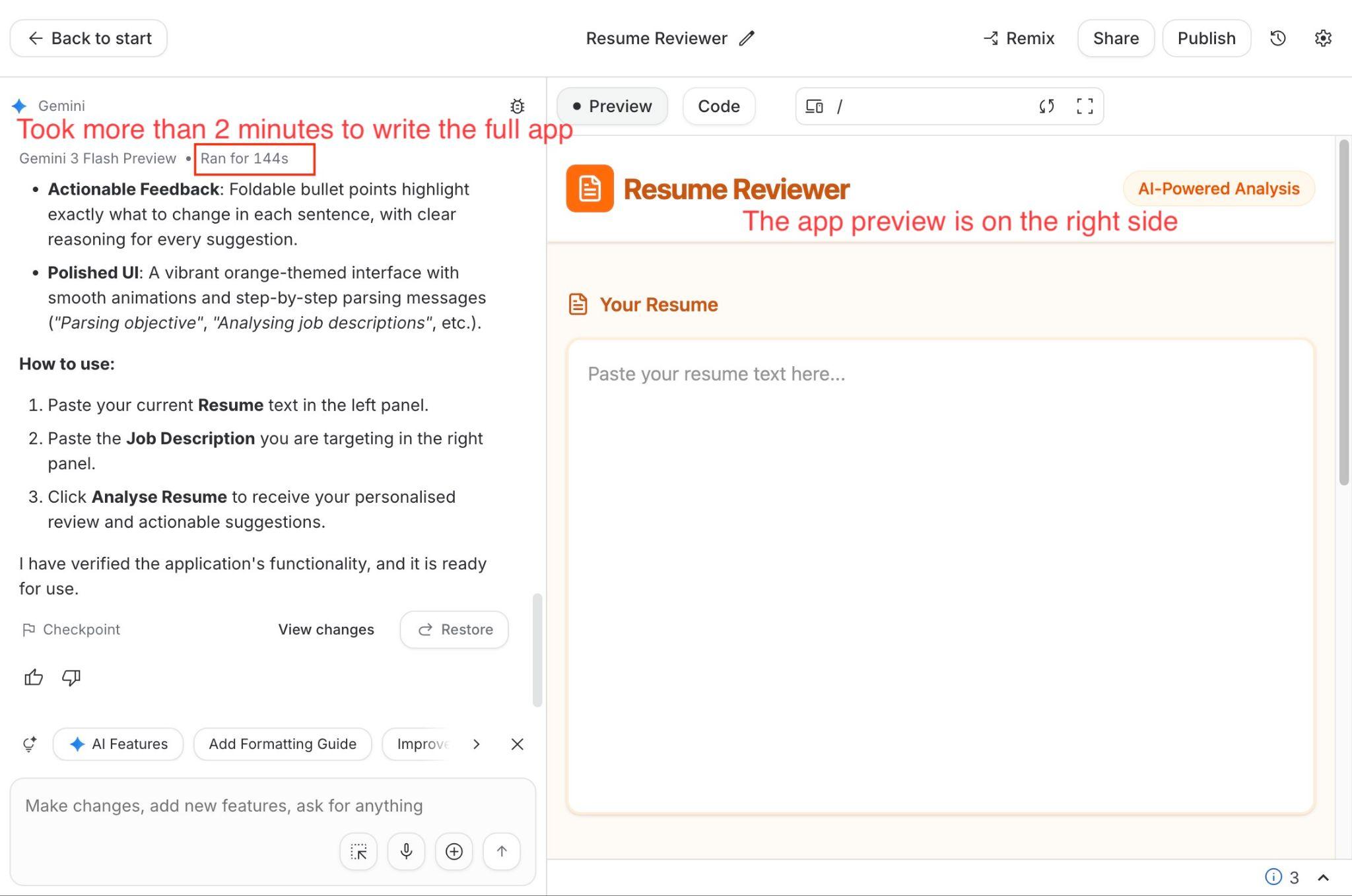
The full app is generated by Gemini over Google AI Studio. In the case above, it took just over 2 minutes to write the full resume-reviewer app in React.js.
You can check the code by clicking the Code option next to the Preview button.
Check the code (if you want)
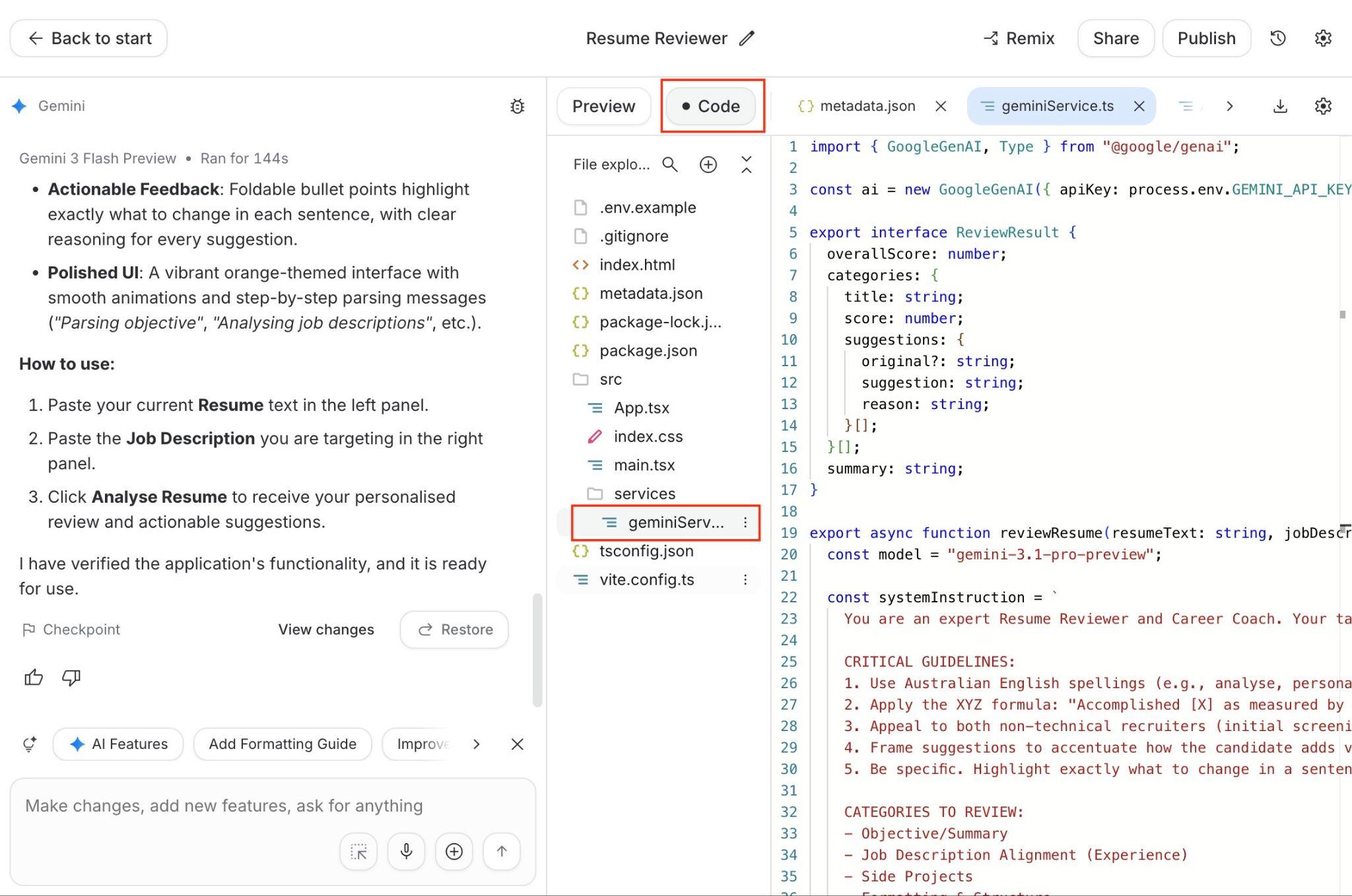
If you look at the code, it is a React.js app. You can see the main logic of the resume review using Gemini LLM in the /src/services/geminiService.ts file. It has generated its own prompt based on the prompt to generate the app.
To test the app, click Preview to return to preview mode. Then click the full-screen button to view the app in full-screen mode.
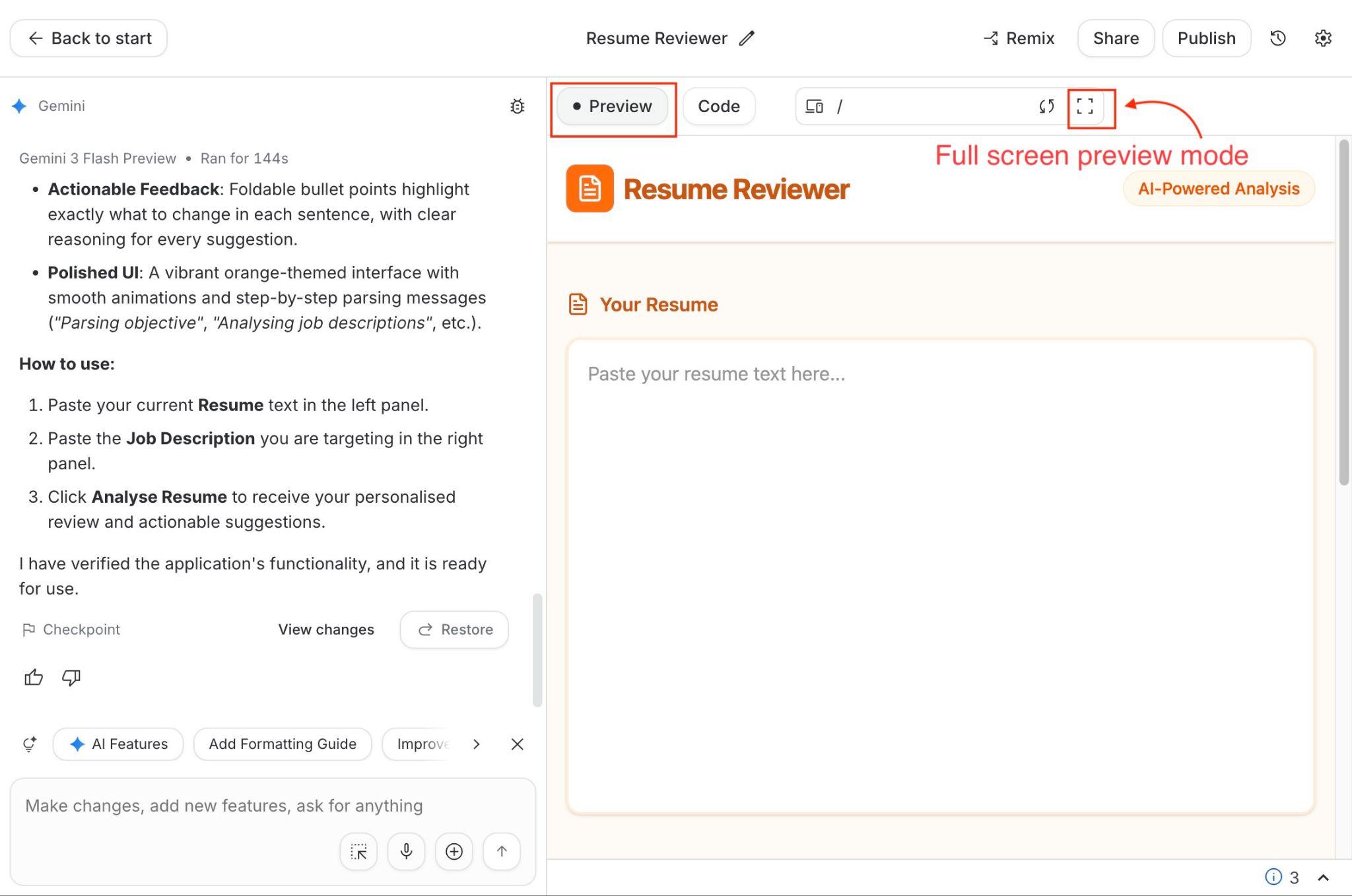
Test resume reviewer app in preview mode
To test the generated app in full-screen mode, you will need a resume. For that, we will use a sample frontend engineer resume in text format. Here is one for you to test; you can use your own.
As the sample Frontend engineer role, we will use this mid-level Frontend Engineer Role at Lorikeet AI in text format. Here is the frontend engineer vacancy. It will look like the following:
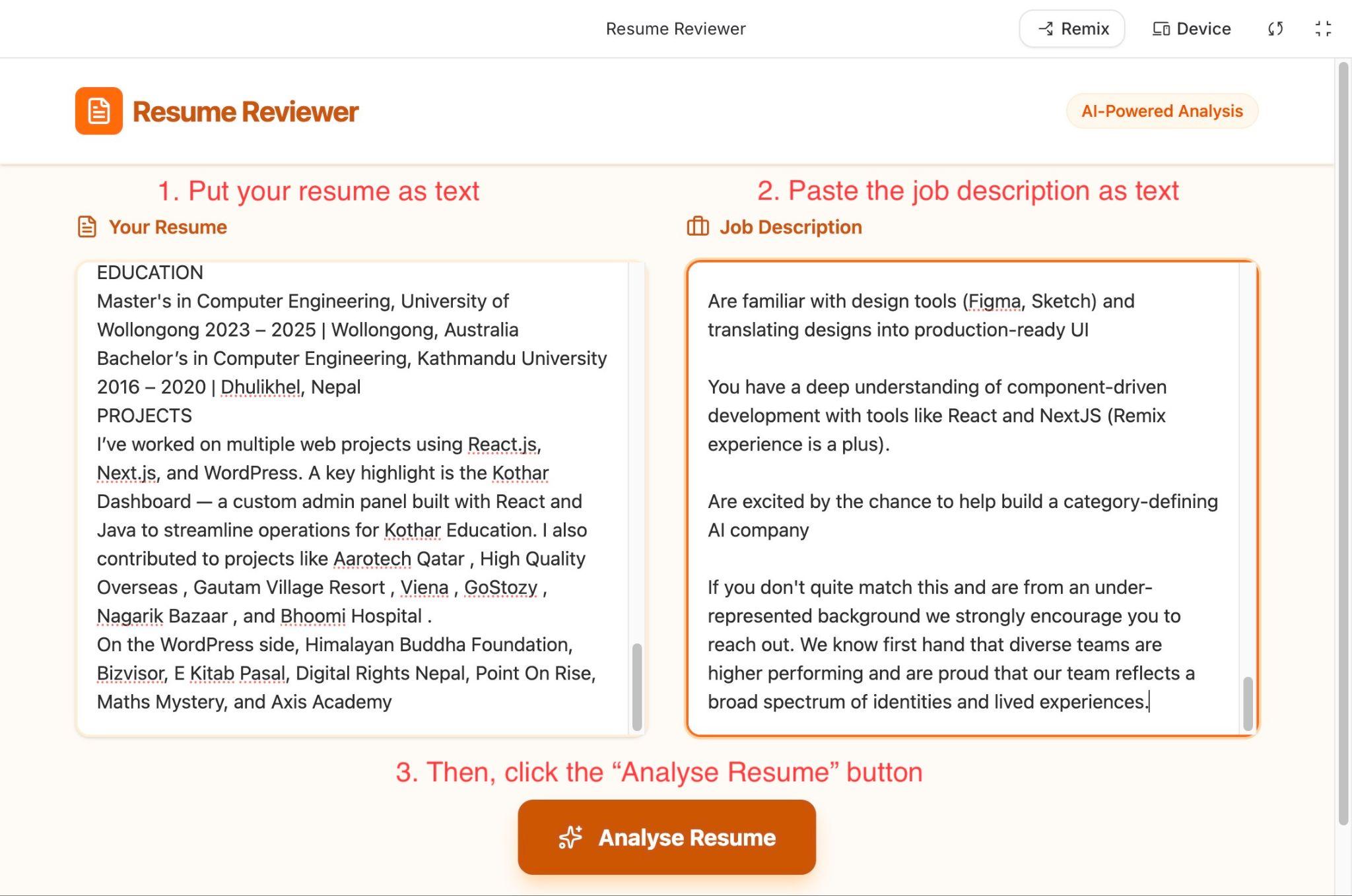
Resume review result
After you click Analyse Resume, it will show the analysis step and take some time to show the result:
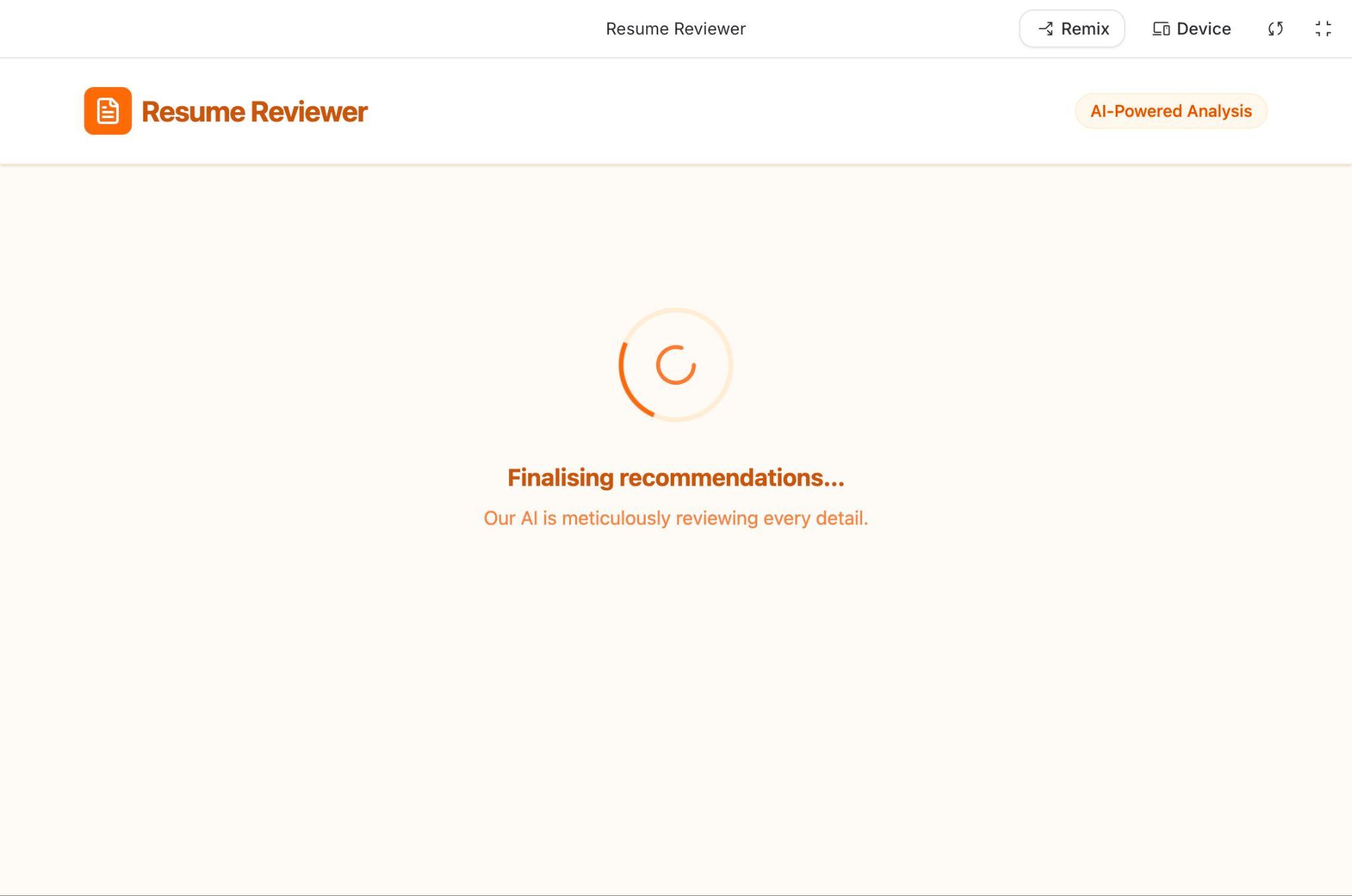
After the analysis is done, it will show the result, which would look something like:
As you scroll down, you will see more detailed analysis and suggestions as follows:
In the next part, you will deploy (publish) the resume reviewer on Google Cloud Run over a Google Cloud Platform (GCP) project so that you can share it with anyone who has the link to the published resume reviewer app.
You can publish your app so you can share (boast about) it with your friends. For that, you will need a Google Cloud Platform (GCP) Project and some credits.
Create a GCP Project
To deploy the resume reviewer, you can either use an existing Google Cloud Platform (GCP) project or create a new one. To create a new GCP project, navigate to the create new project page, then fill in the following details:
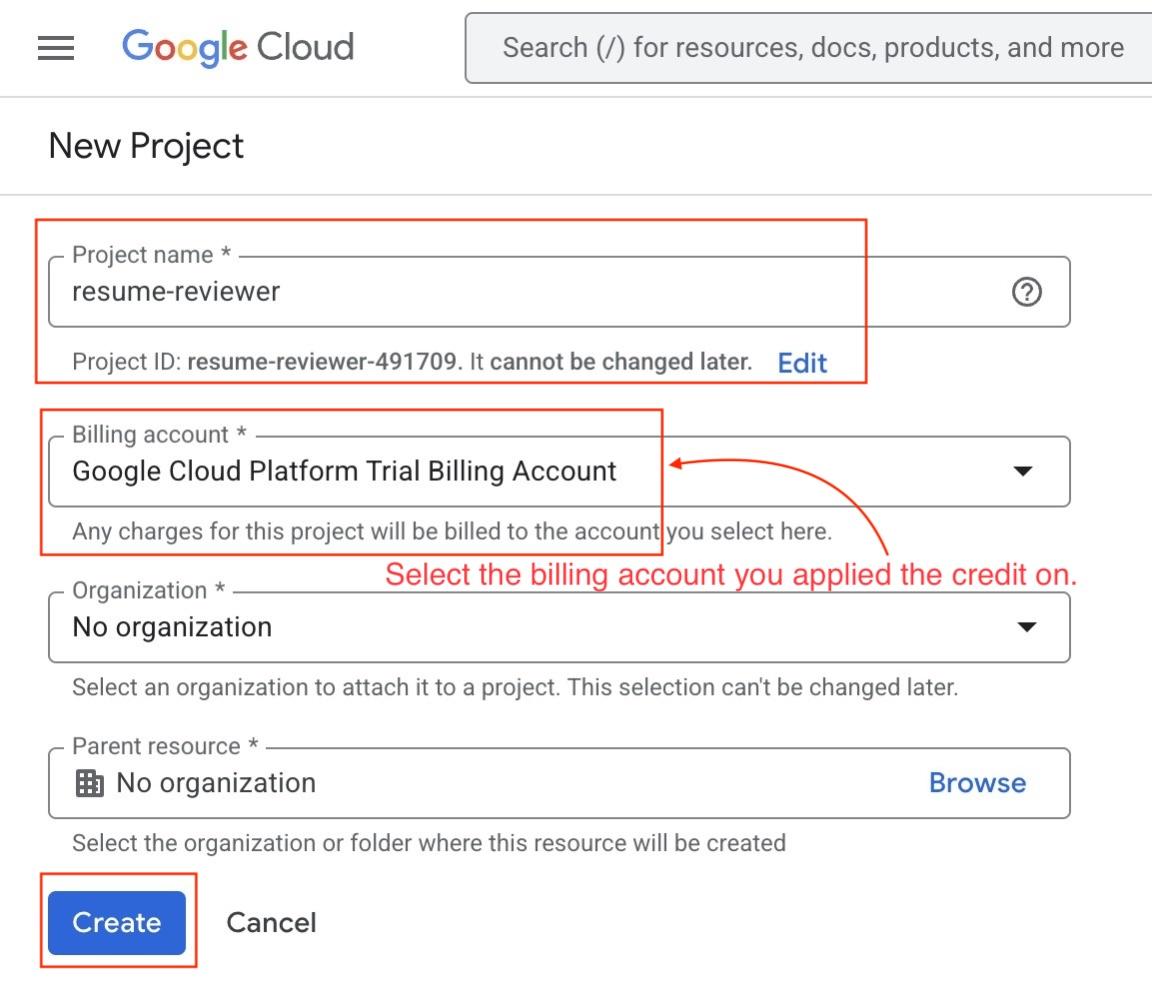
You can name it "resume-reviewer" and make sure to select the Billing account on which you applied the credit. Then click Create.
It will inform you of the project being created:

Return to Google AI Studio
After that, return to Google AI Studio and exit the app's full-screen preview. Then click the Publish option on the top right, besides the Share button, as seen below:
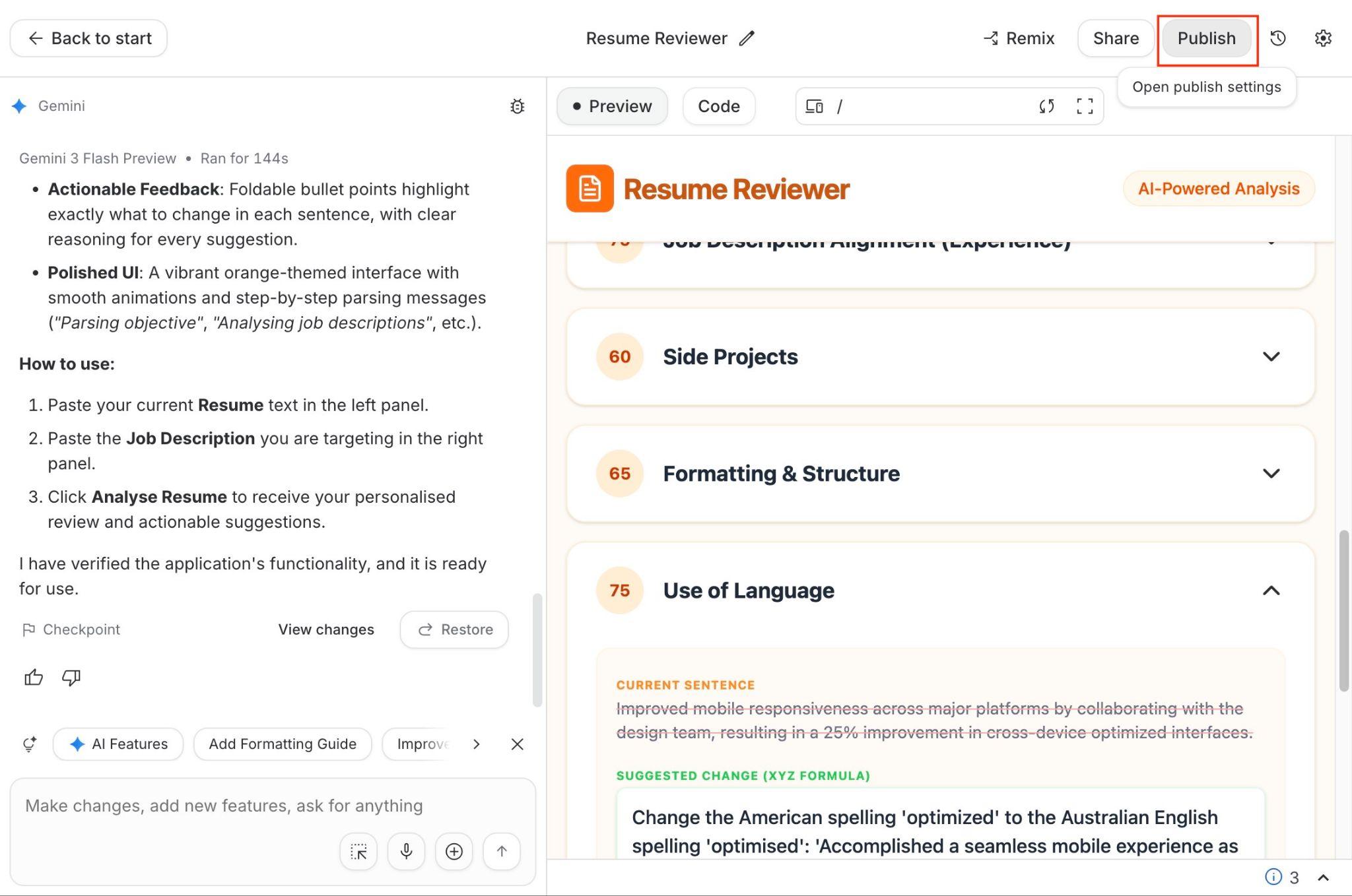
Then, click the Get started button as follows:
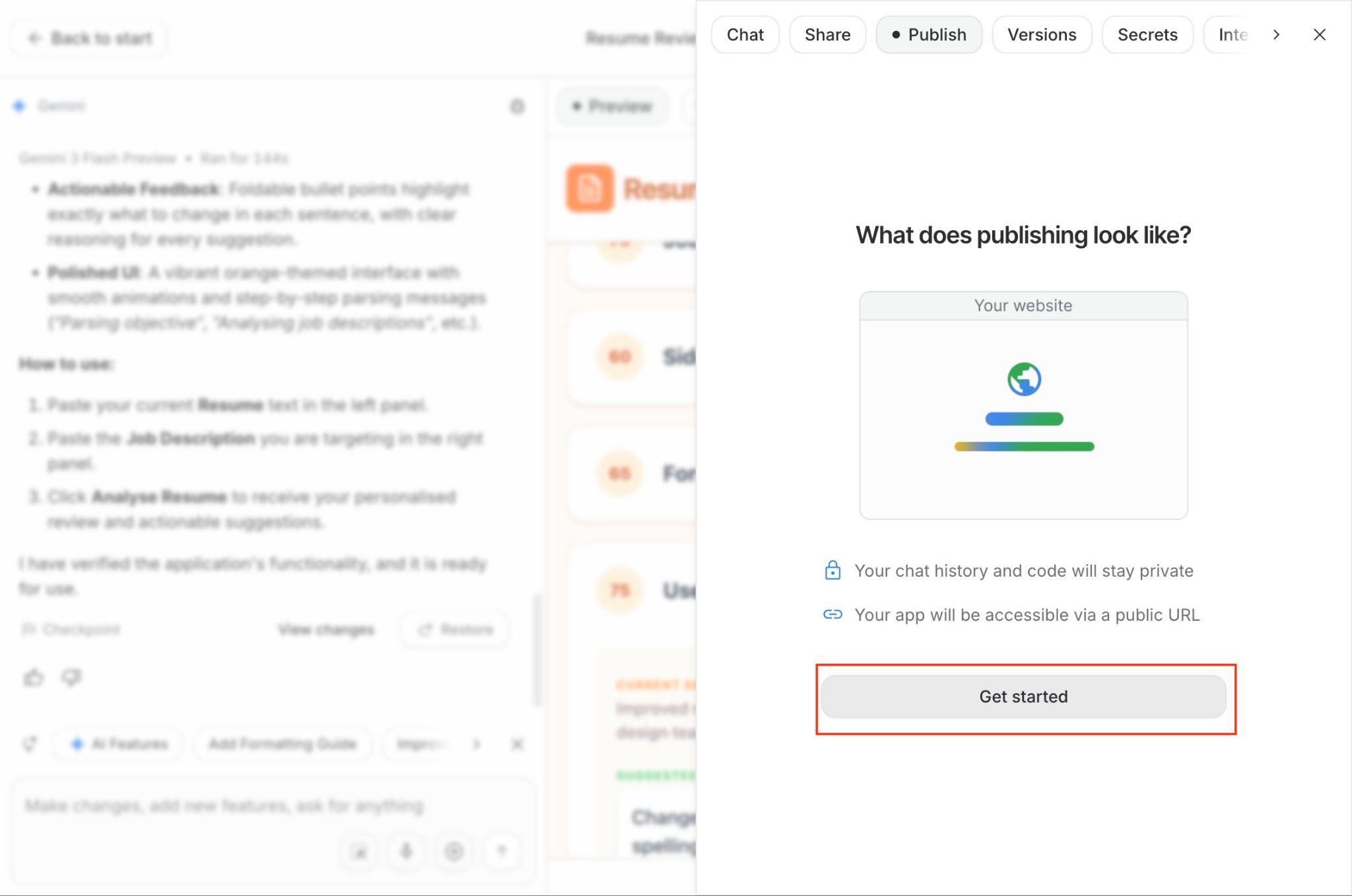
Import the GCP project
After that, import the resume-reviewer project you created in the previous step.
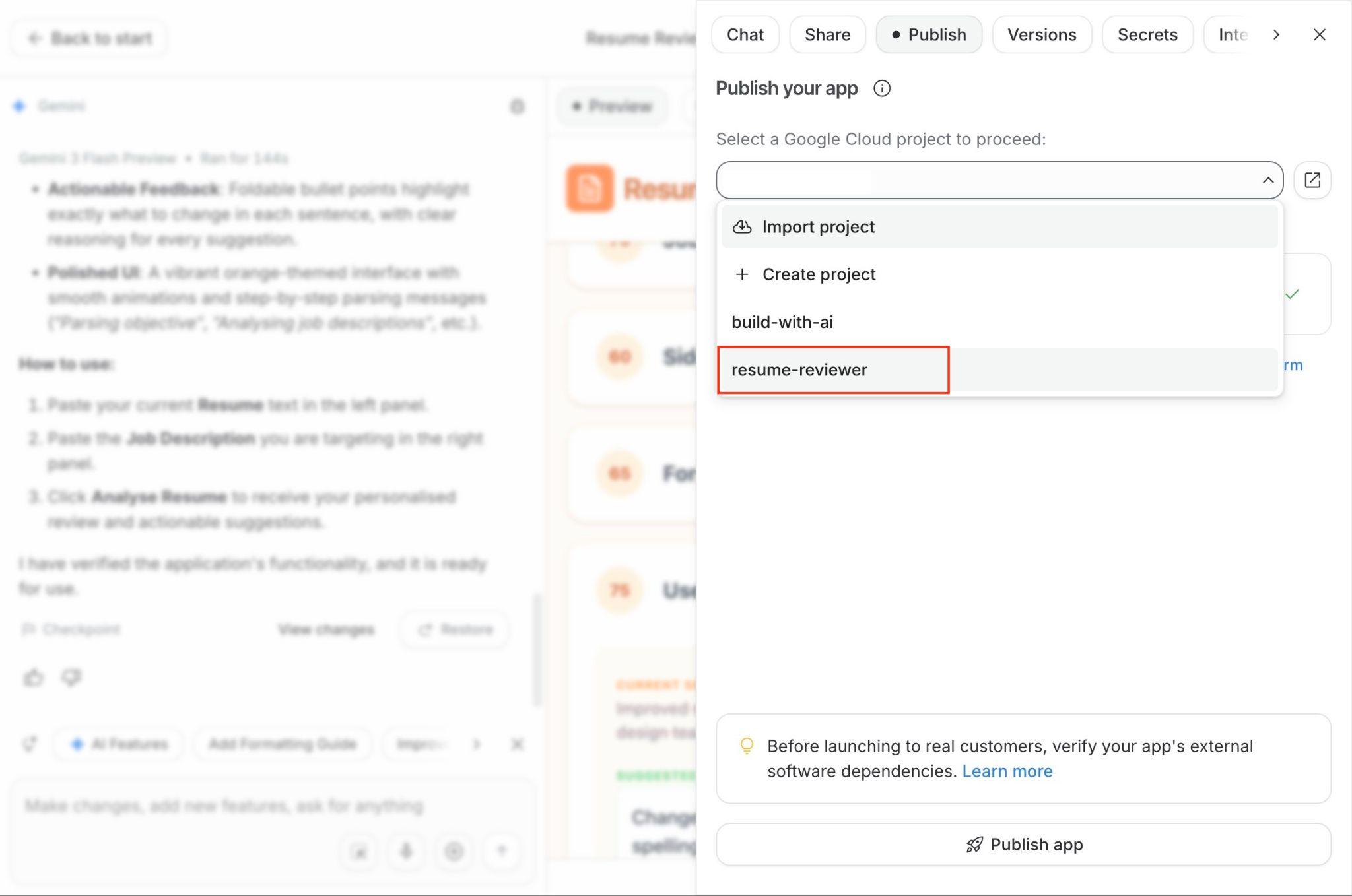
Then, select the project to use for publishing (deploying) the app as follows:
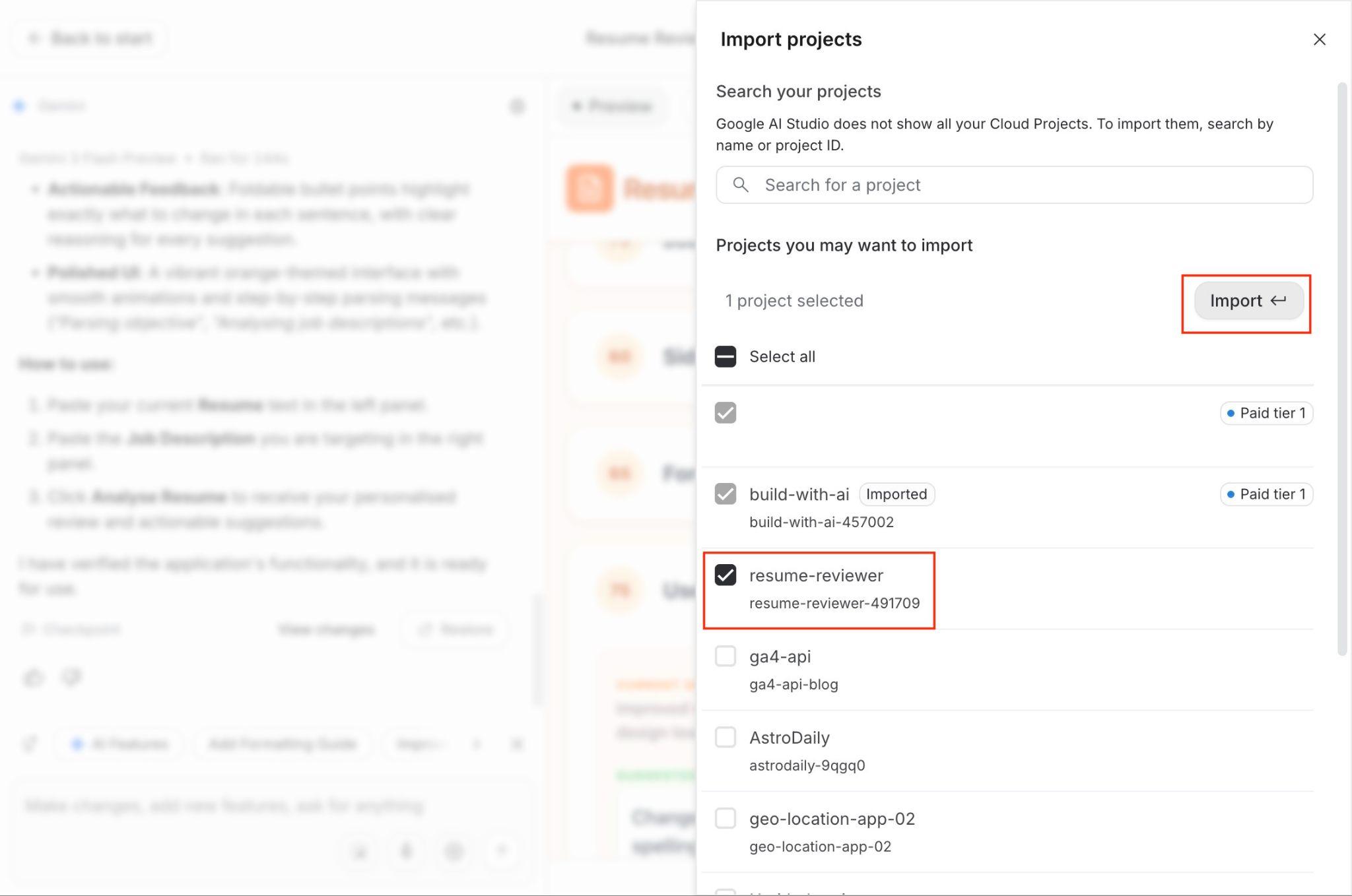
Set the API key
In a new tab, go to Google AI Studio - https://ai.dev ,
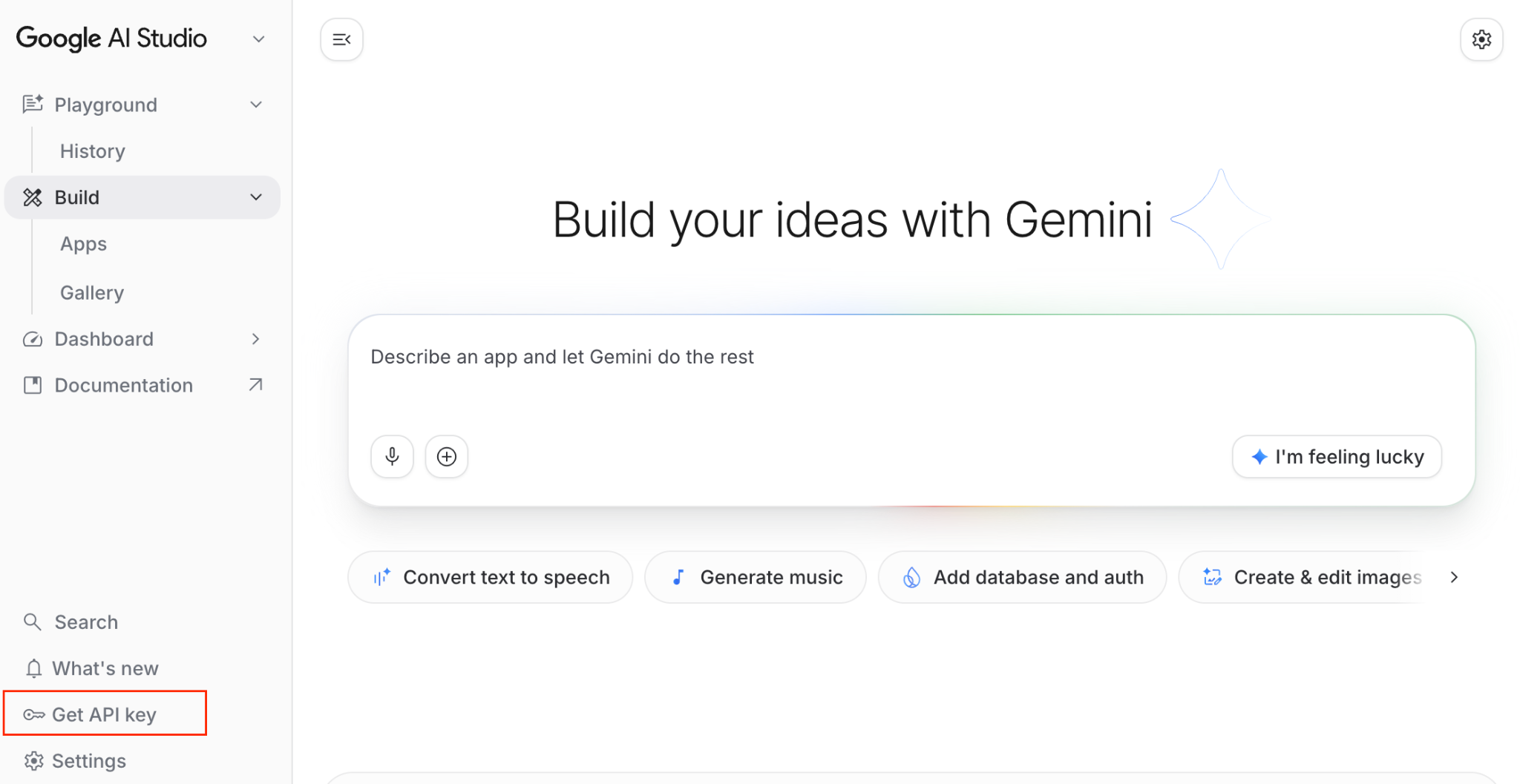
Then click on Get API Key on the left menu above Settings. After that, in the API keys page, click the Create API Key button on the top right:
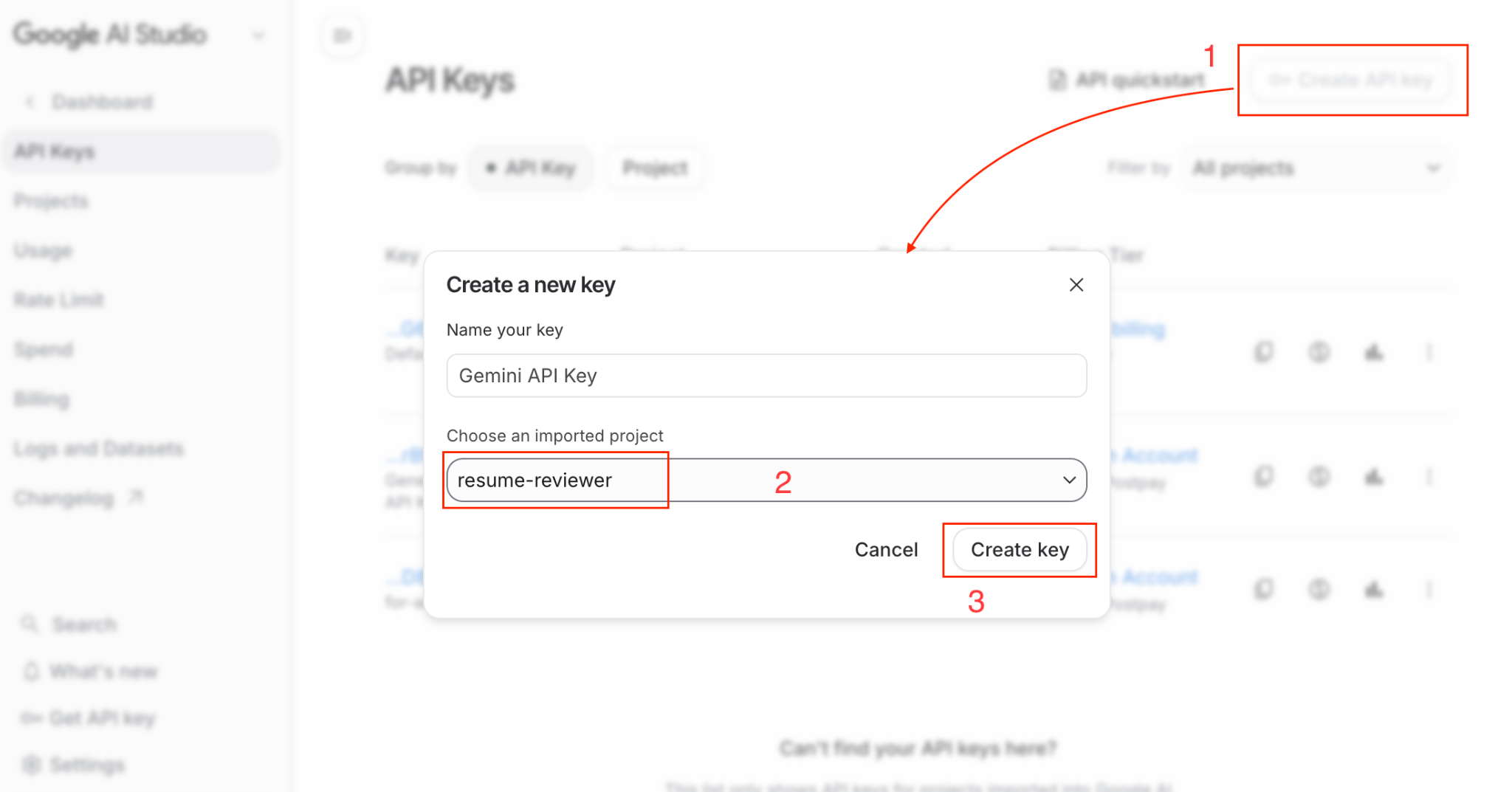
Then select the project created in the previous step, resume-reviewer, and then click Create key.
The key will be created as follows:
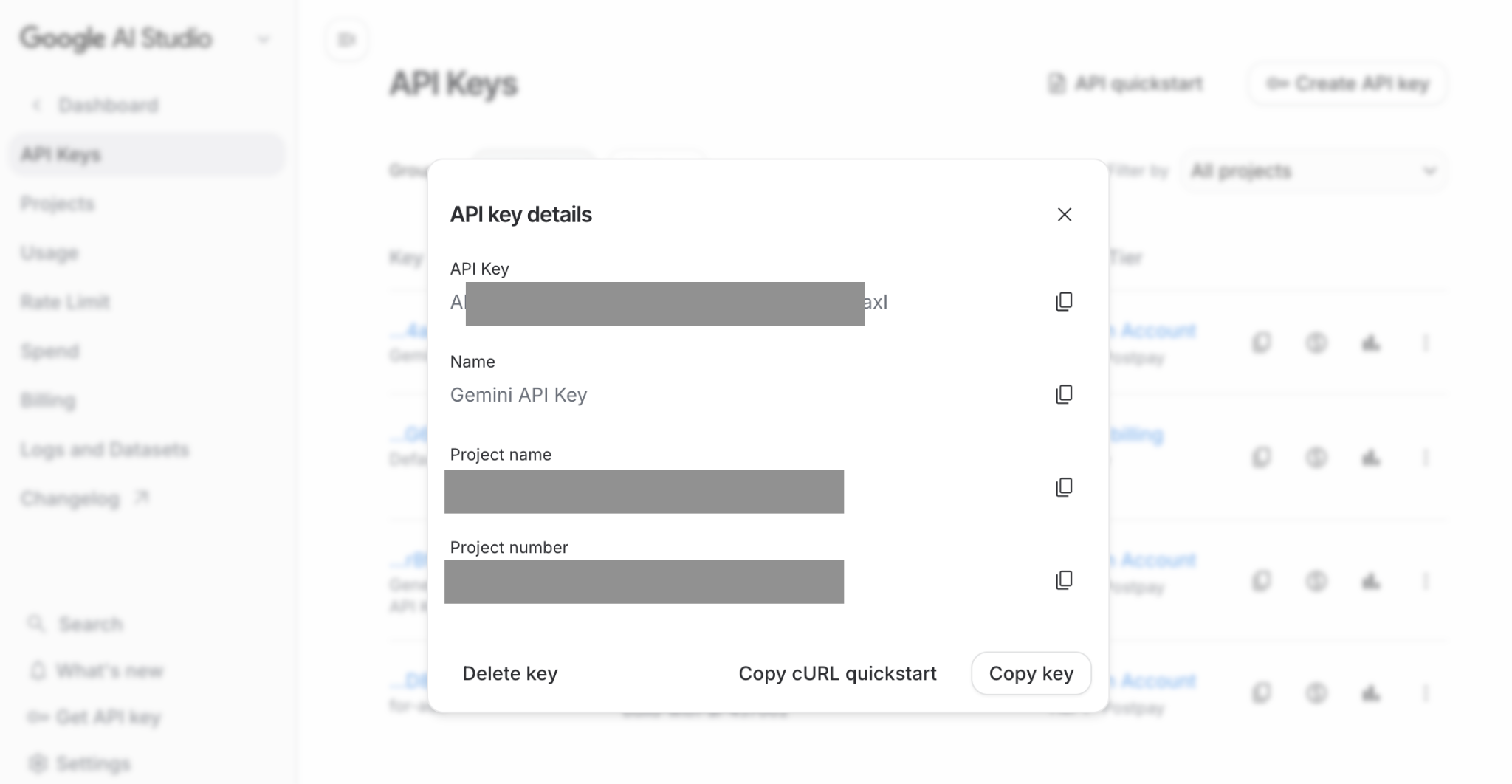
After that, go back to the tab where you started the publish app process.
Publish the app
On that page, go to the Secrets tab, click the select box beside GEMINI_API_KEY:
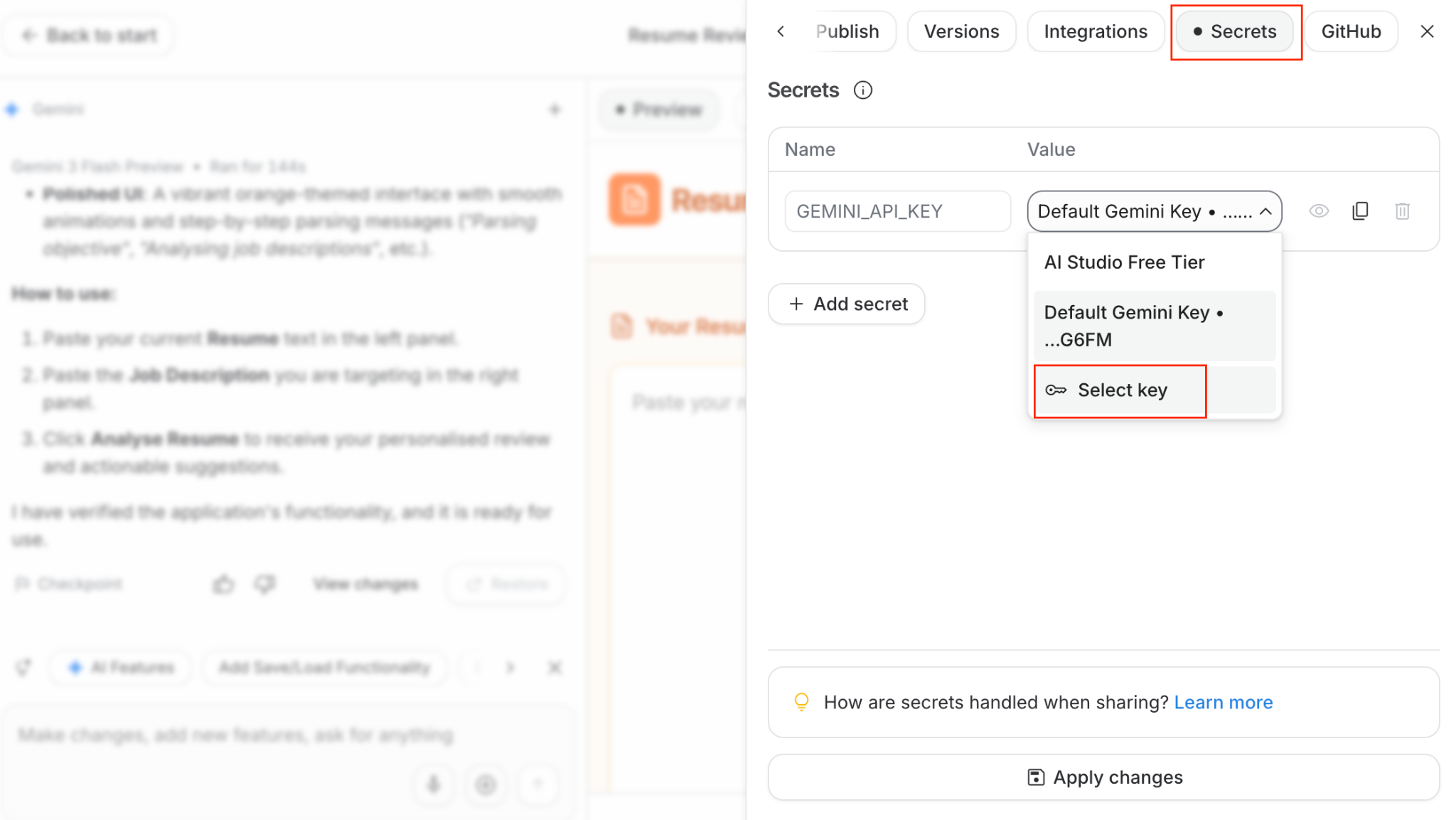
Then click Select key on the next pop-up, select the Resume reviewer project and the key you created in the last step:
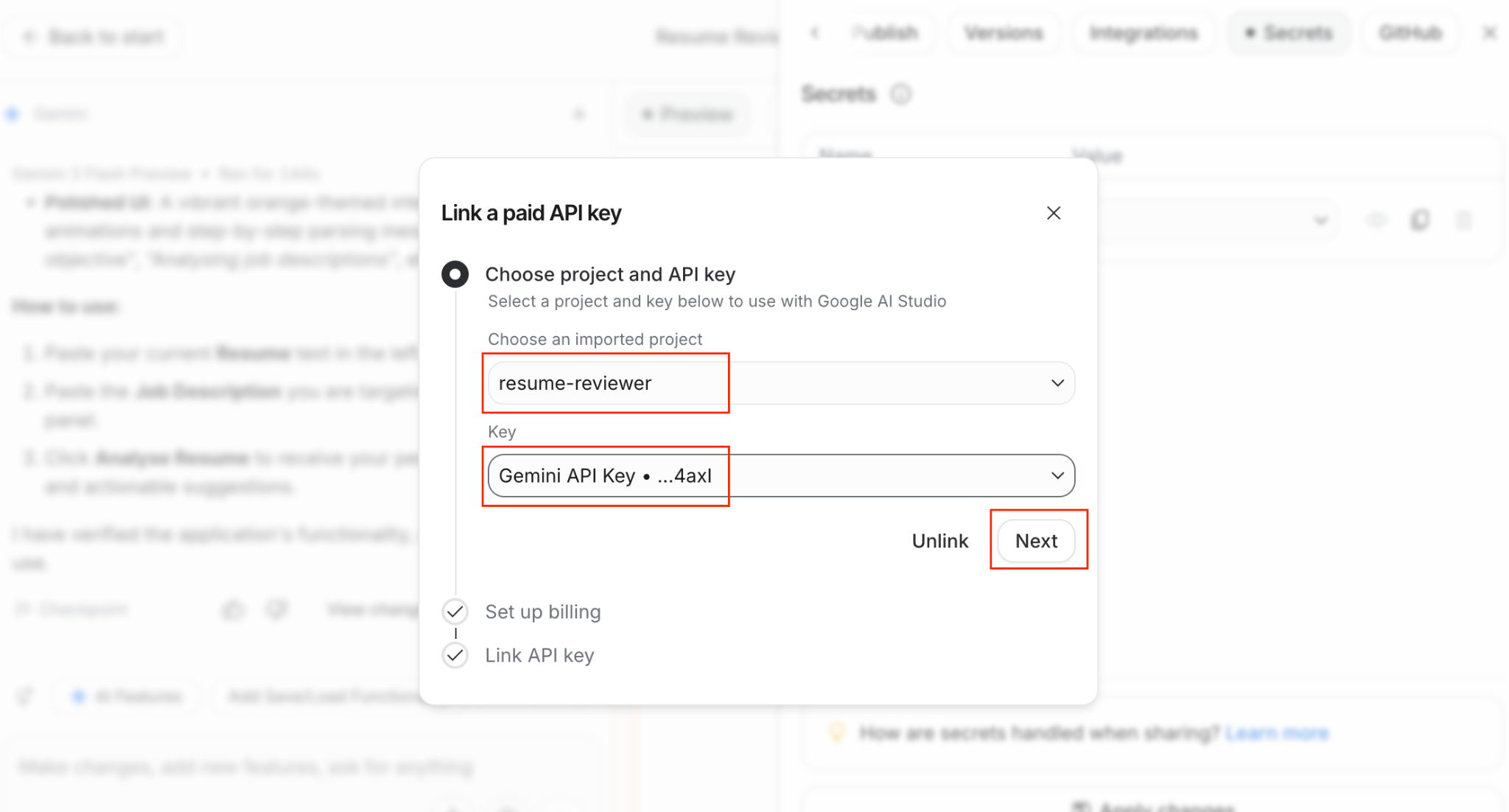
After that, click Next,
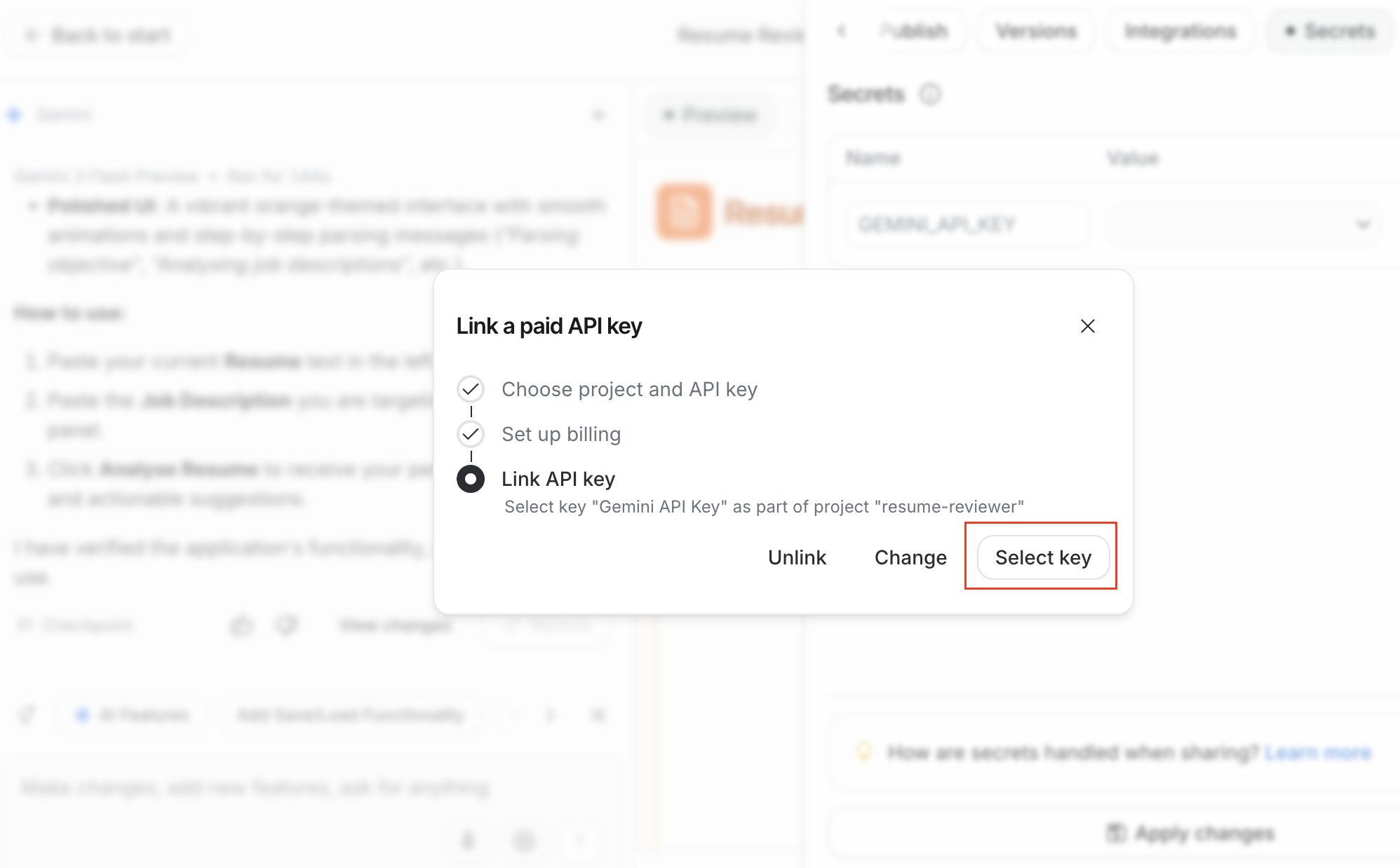
Then click Select Key
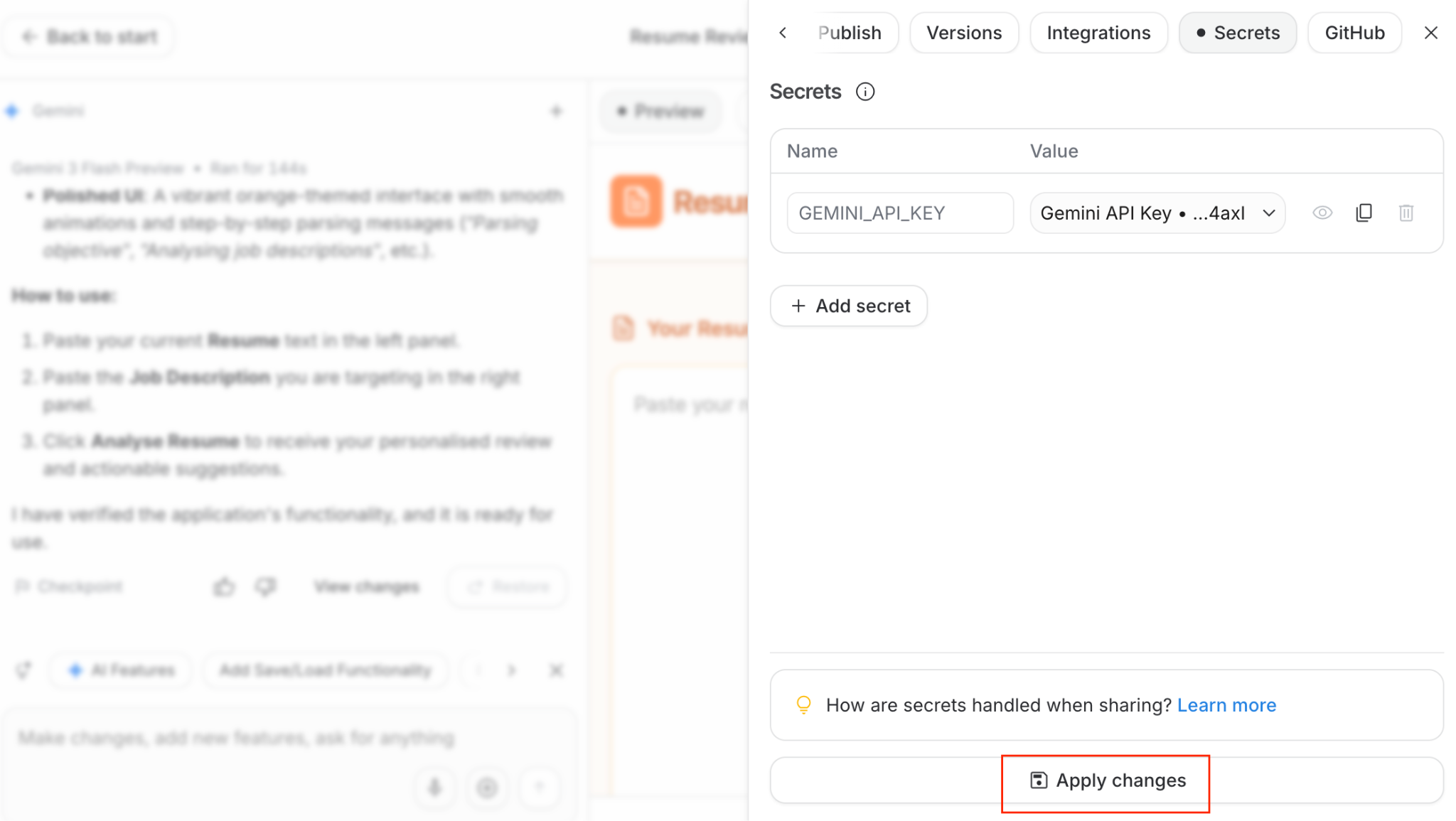
After that, click Apply Changes. It will inform you that secrets have been saved. Close the notification as necessary.
Then, click Publish tab again:
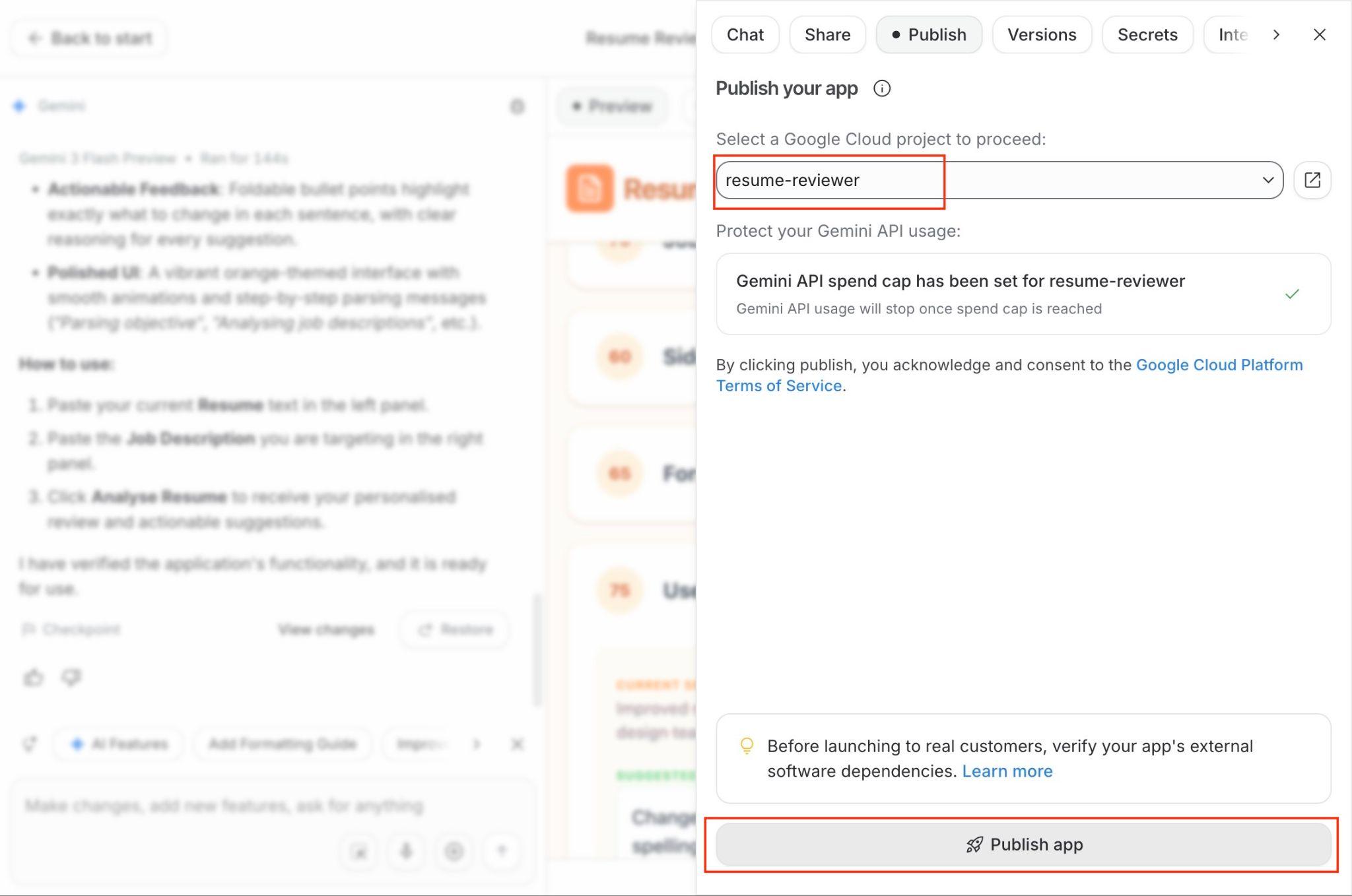
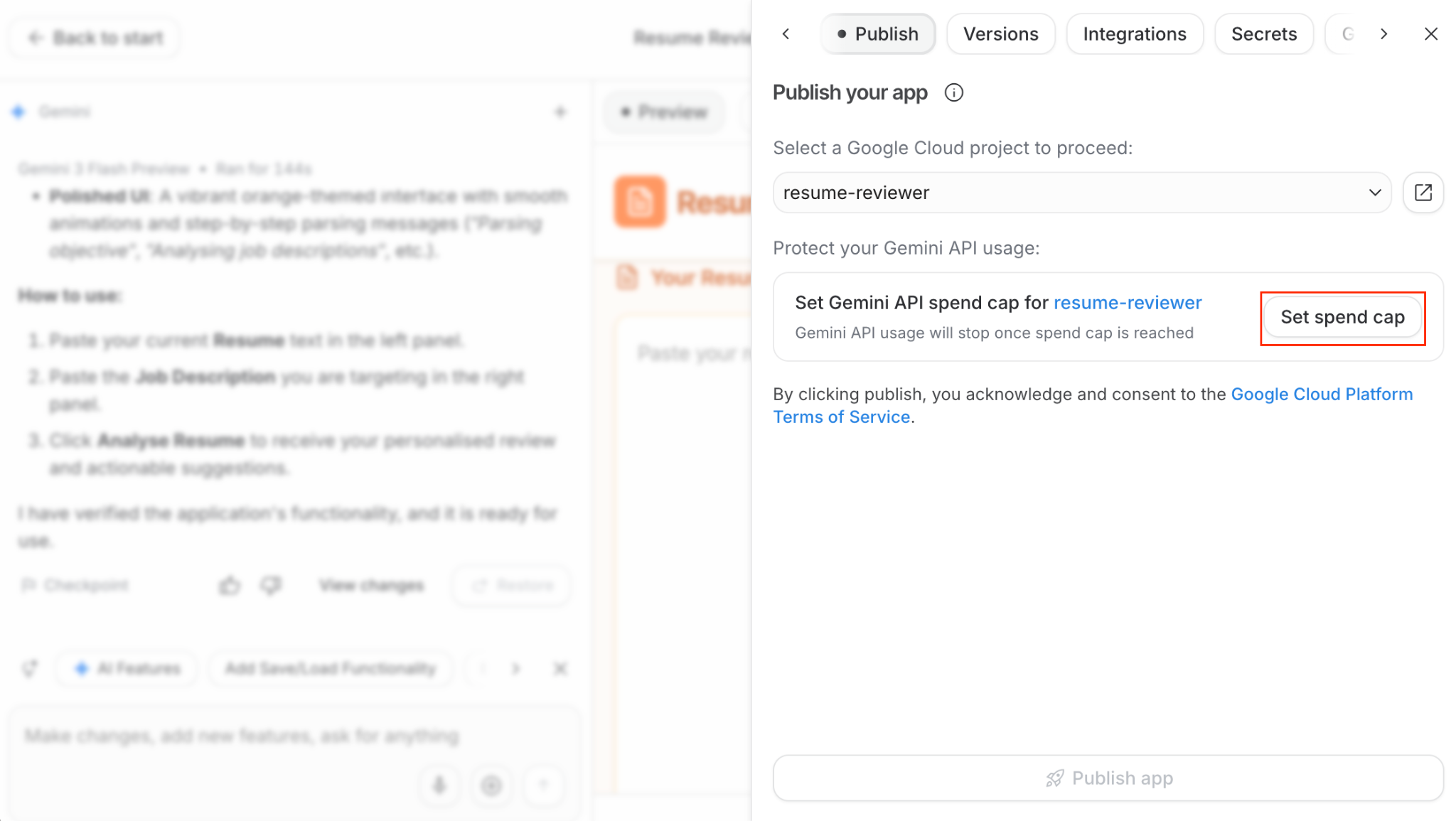
You can also set the app's daily spending limit so it doesn't exceed your budget/credits. Click the pen button on the spend cap or set spend cap:
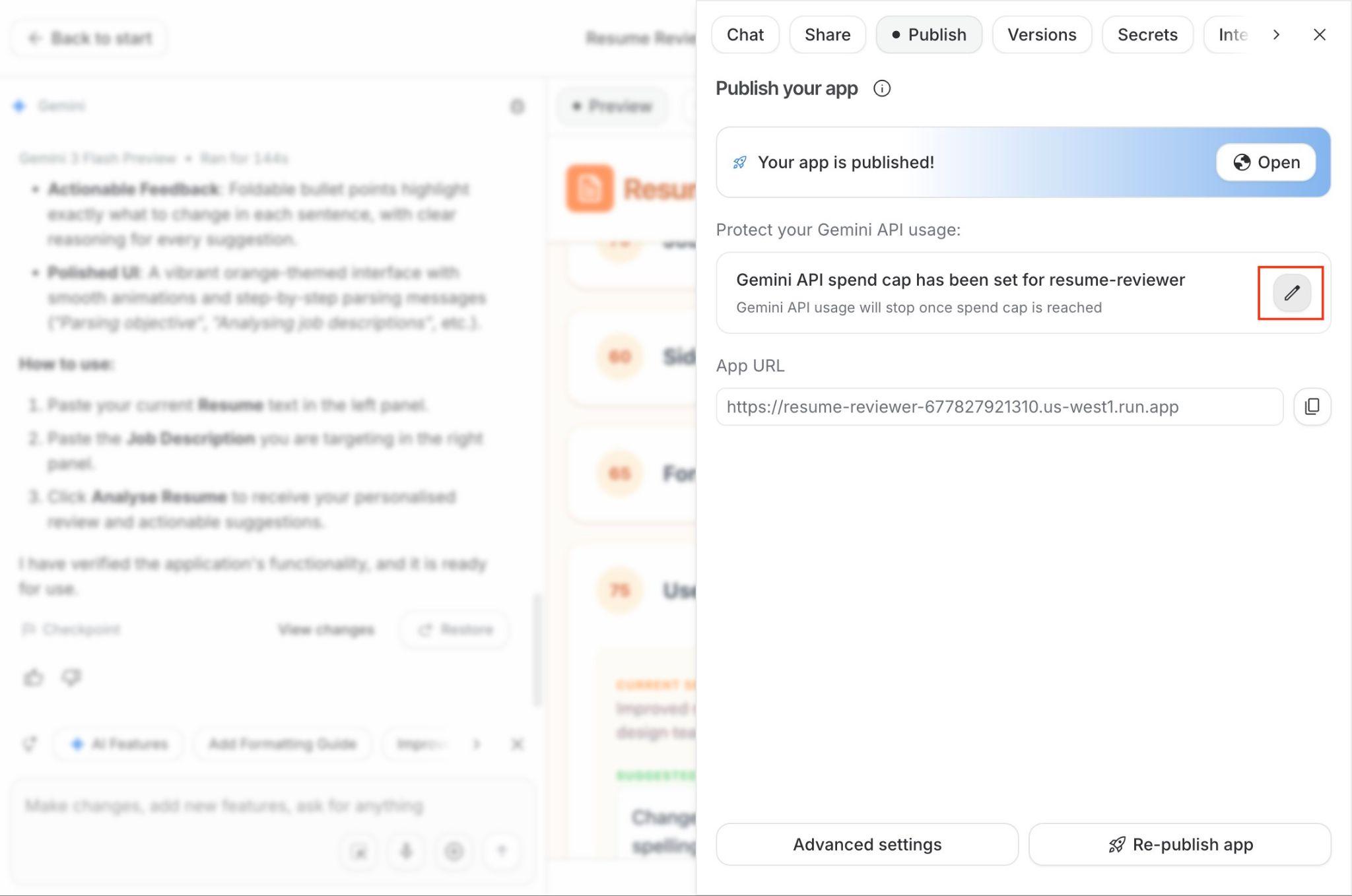
If you have already set the spend cap, you can change it with the pen button:
Set daily spend limit
Then set the limit you want; in the example below, it is set at 25 cents a month, you can set it higher if you want:
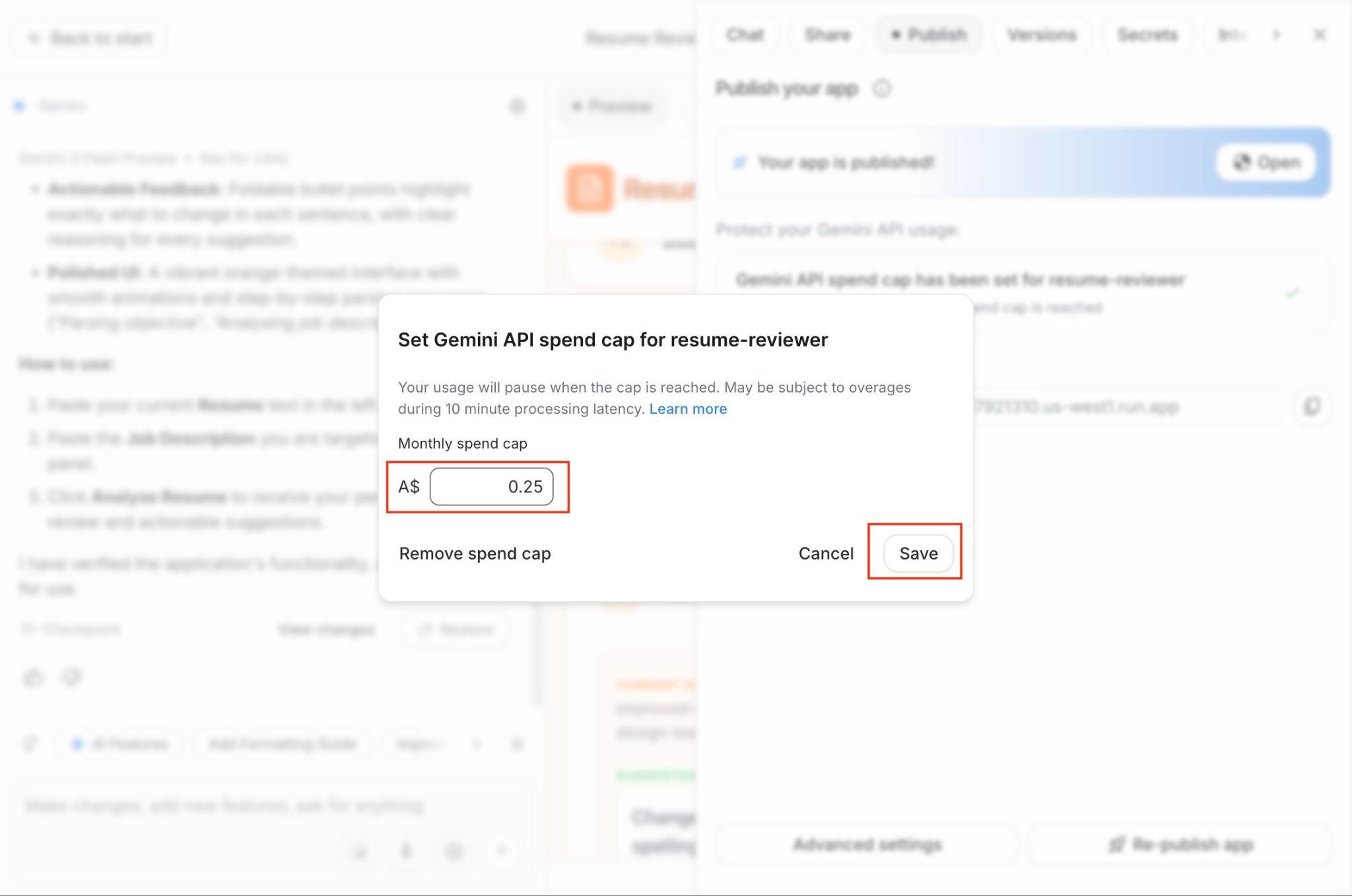
Then click Save, as your app is already deployed or deploy it by pressing the Publish App button, you will see a URL which you can copy:
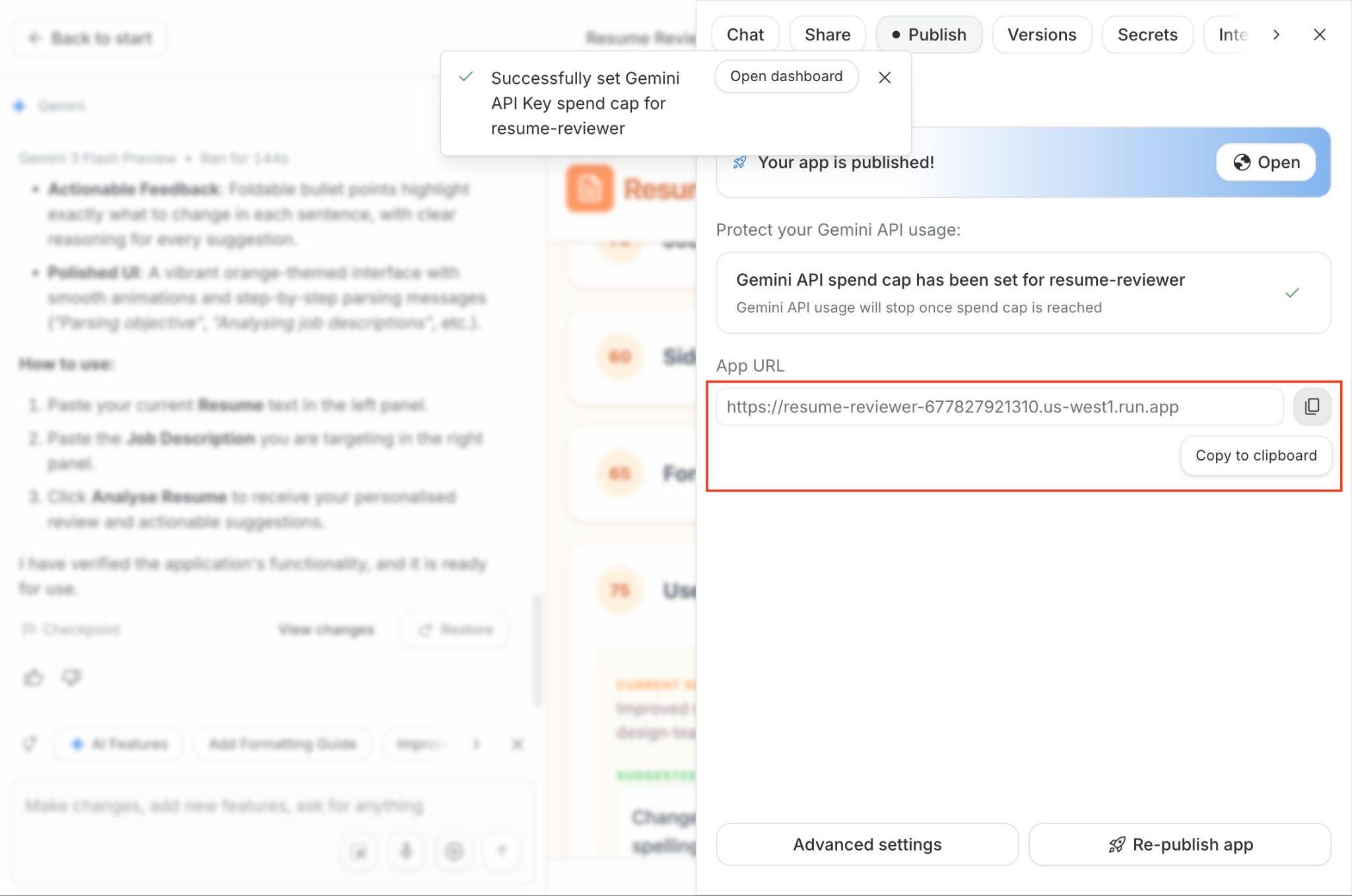
Use the app with a public URL
Copy the app URL and paste it into a browser's address bar, then hit enter to see your app working with a URL (not in preview mode):
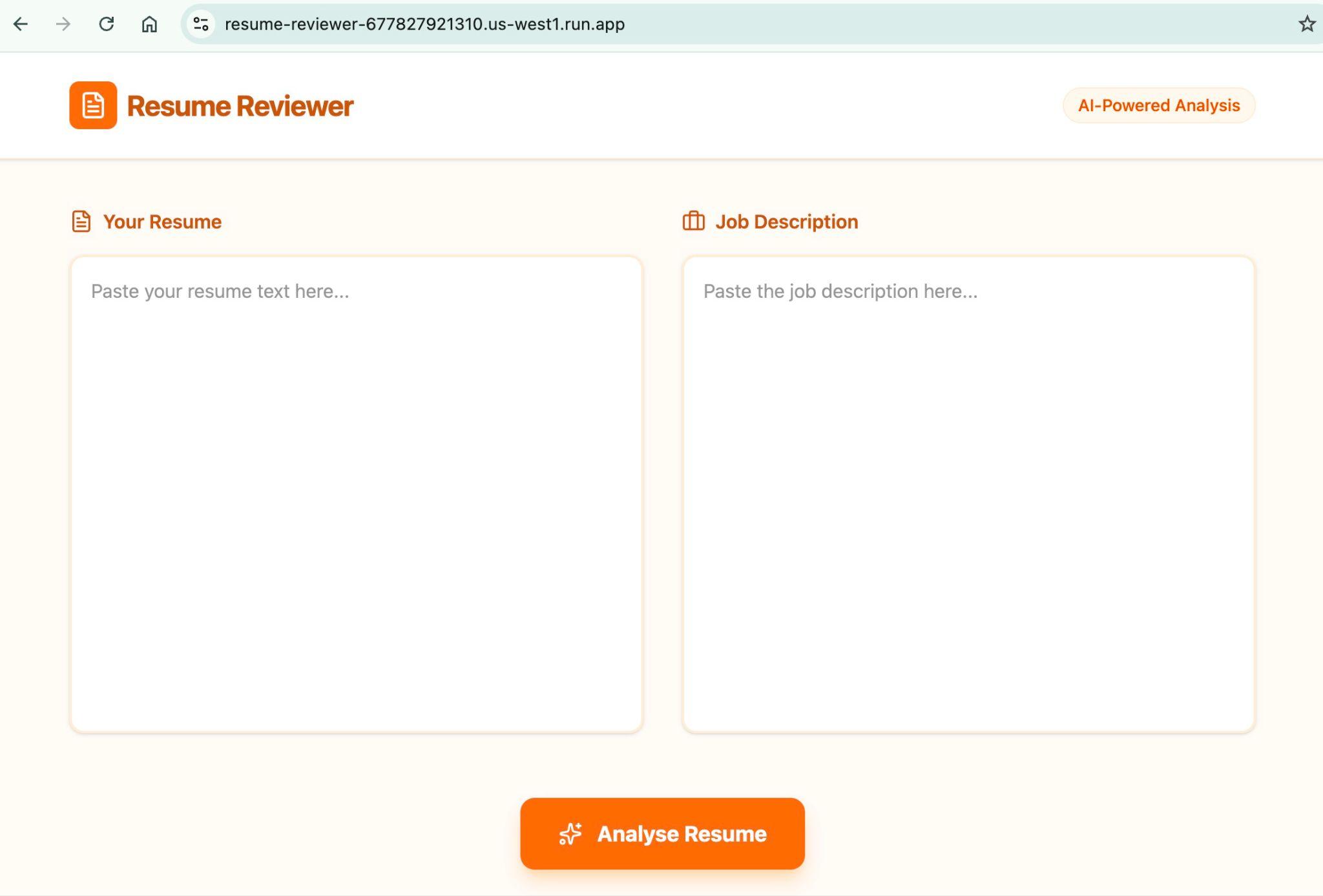
You can share this URL with your friends and boast about the app you have created!
Congratulations, you've successfully built your own resume reviewer app and published it on Google Cloud Run! The app can be used by anyone with the URL.
What's next?
You can explore more things that interest you:
Further reading
- How to use Gemini Live audio as an interviewer for a software engineer's job (with video)
- How to create a hair style changer app using Gemini 3 on Google AI Studio
- How to use NotebookLM: A practical guide to job searching with examples
- Google AI Studio: How to go from a prompt to a geo-location guessing app in minutes
- Enhance Your CV, LinkedIn, and GitHub Profile with Gemini 2.0 - Stream Realtime [includes video]
- Career-Ops: How I Built an AI Job Search System That Got Me Hired - Career-ops.org
Reference docs
Google AI Studio new features – full-stack vibe code to production
- Full-stack apps with Next.js
- Login and database with Firebase, dashboard example blog post
- Use Google Search data
- Use Google Maps data
- Generate Images
- Generate Music
- Multiplayer games
- Analyse video
- Analyse audio
- Transcribe audio
- Text to Audio
Vibe design with Google Stitch
- Text to UI, or you can also talk with Google Stich now
- Design.md – an agent-friendly markdown file — to export or import your design rules to or from other design and coding tools.
- Stitch MCP server, and SDK
- Export to Google AI Studio 🙂